Windows 10: Top of Computer Monitor Blocked or Blacked Out?

It’s usually a temporary blip (highly technical term 🤓) with the resolution and graphics card and it happens to me sometimes after I open one too many browsers, tabs and applications. but who’s counting. 😀

If you have time, reboot.

If you are in the middle of something, you can press the Windows key + Ctrl + Shift + B for a quick refresh. Your monitors will flash, turn black, and then come back on.

You could also unplug the power for about 10 to 15 seconds and then plug it back in.
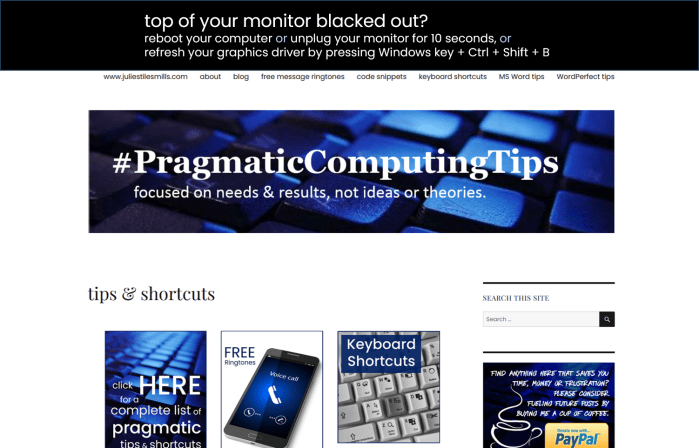
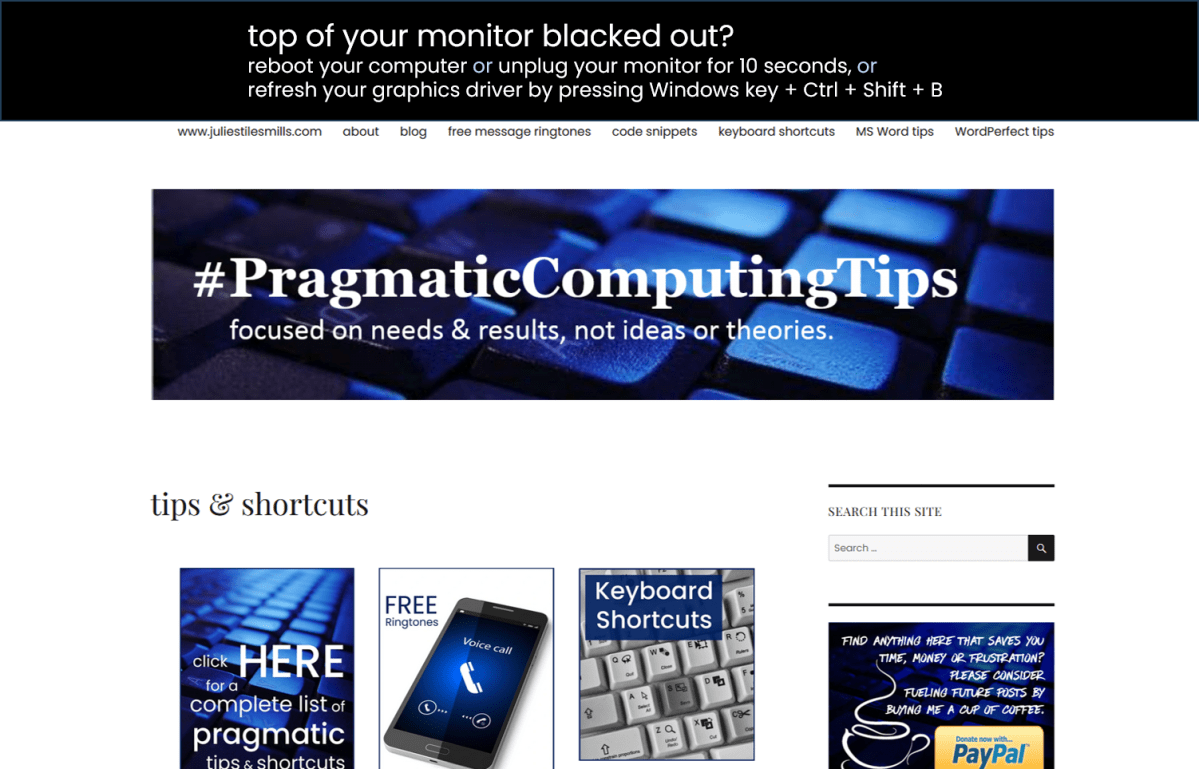
Screenshot of blocked out monitor

If none of these three quick fixes works for you, the resolution of your monitor may be set incorrectly, you may have an outdated driver or you may need a better quality monitor.
How to check laserjet ink levels in Windows 10

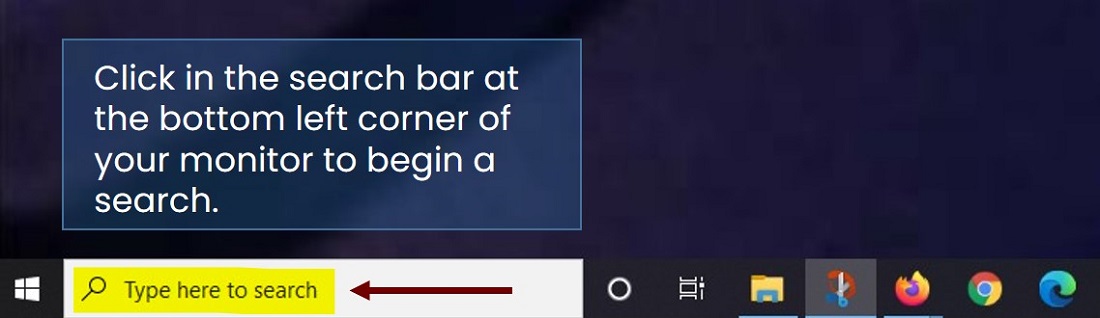
Step 1: Click in the search bar at the bottom left corner of your monitor to begin a search.

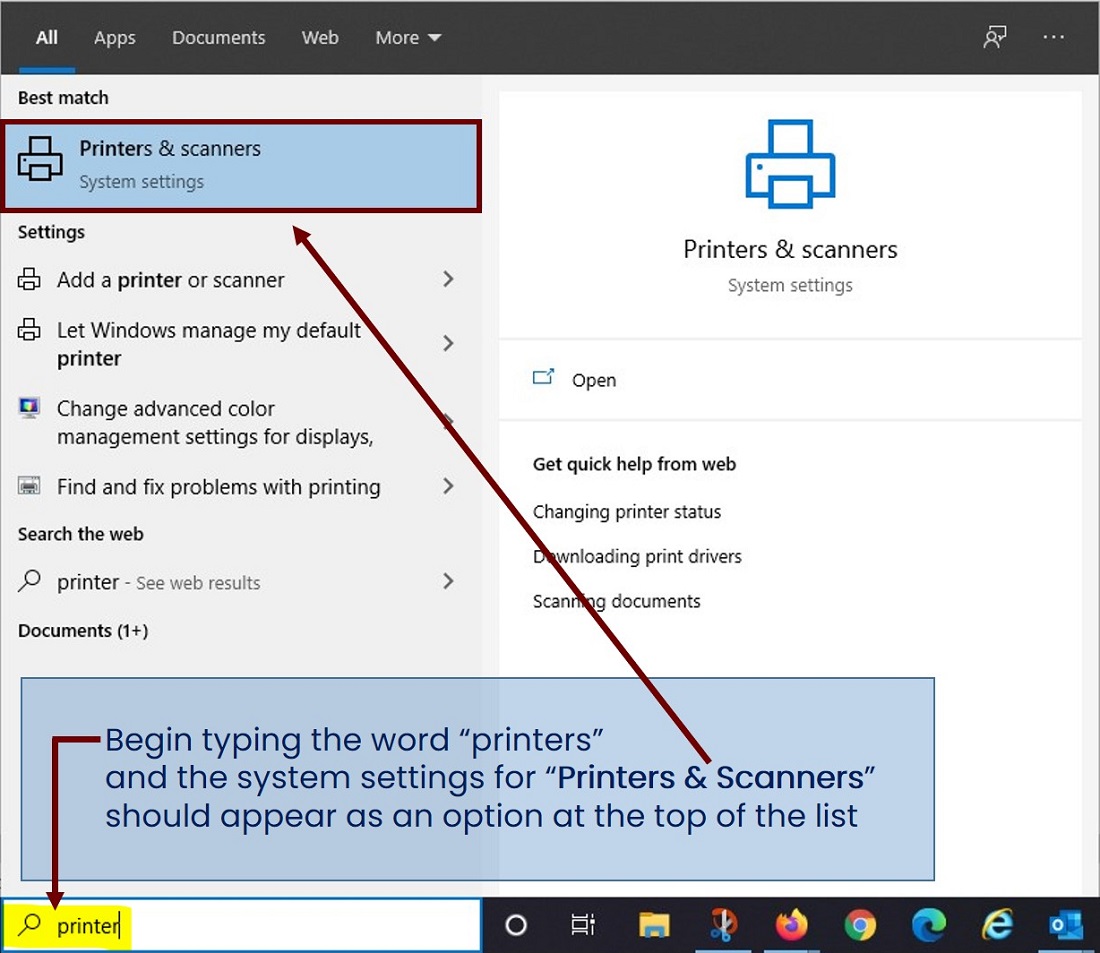
Step 2: Begin typing the word “printers” and the system settings for “Printers & Scanners” should appear as an option at the top of the list.

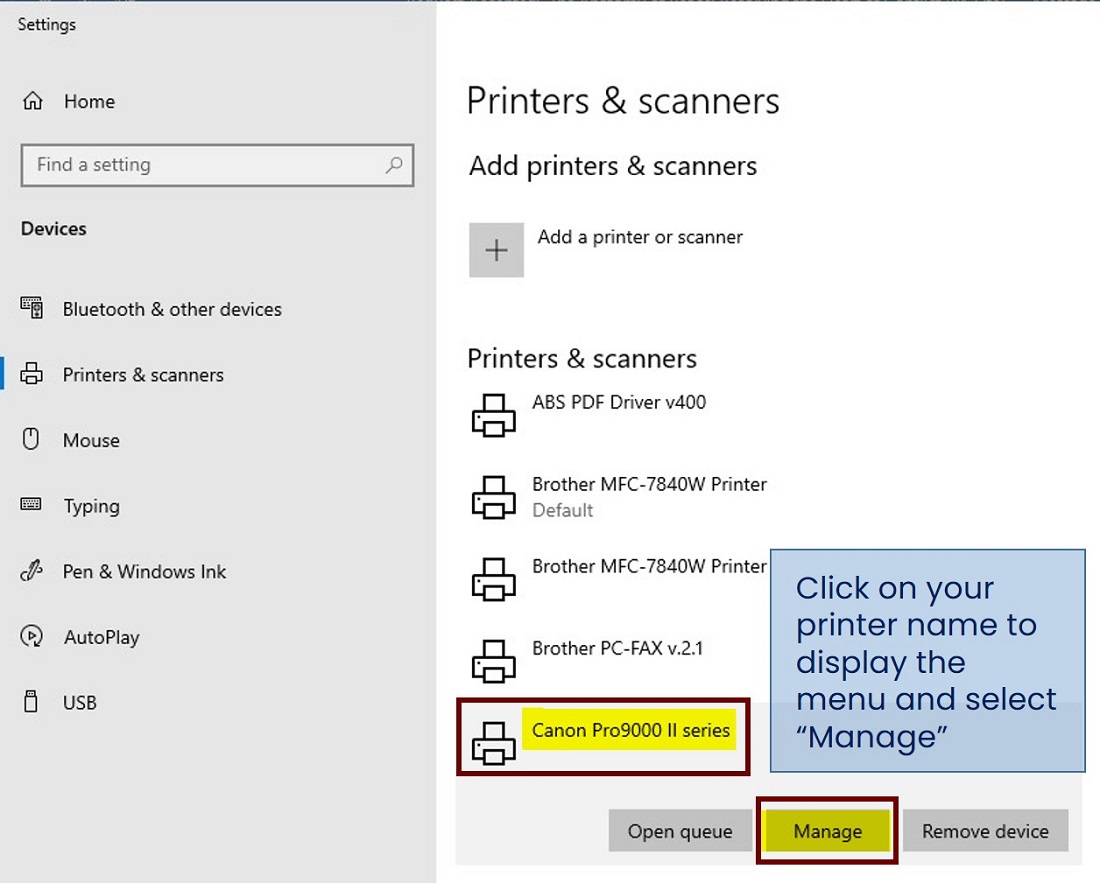
Step 3: Locate your printer in the list. In my case, it’s a Canon Pro9000.

Step 4: Click on your printer name to display the menu and select “Manage”

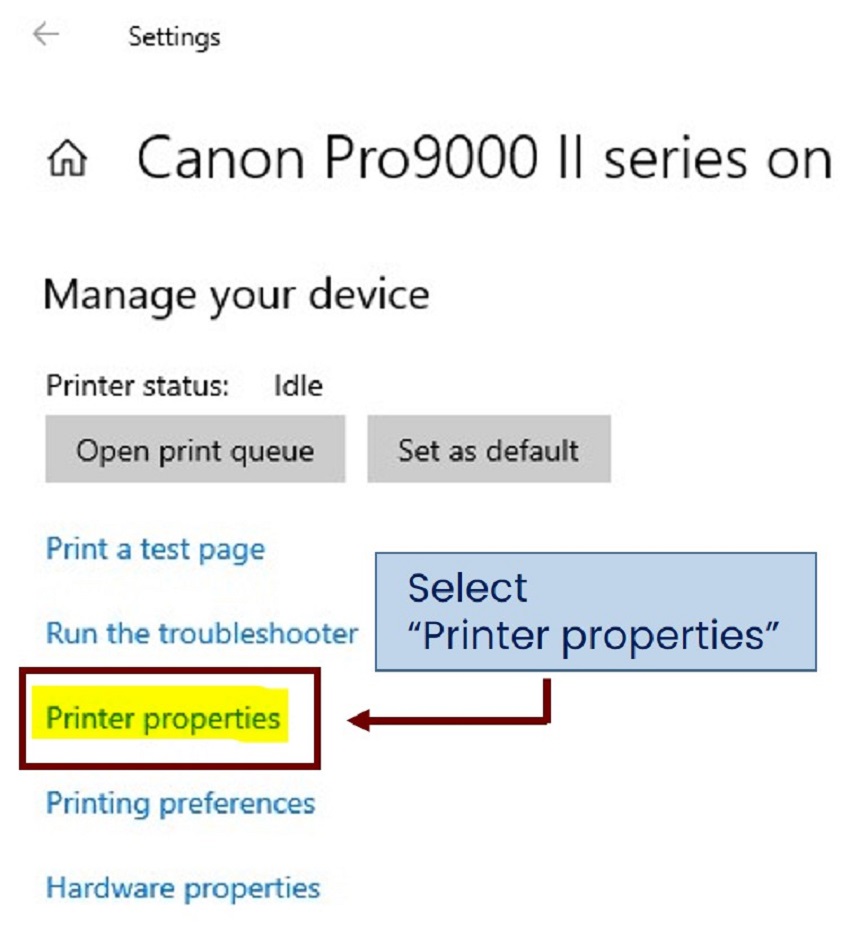
Step 5: Select “Printer properties”

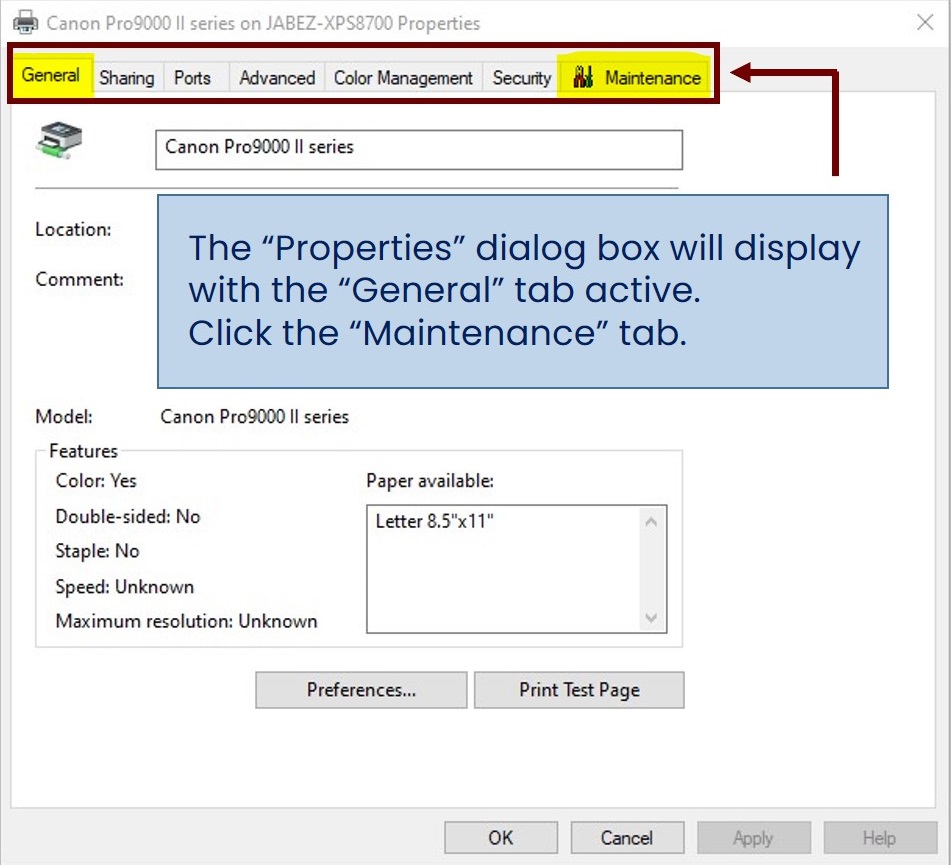
Step 6: The “Properties” dialog box will display with the “General” tab active. Click the “Maintenance” tab.

Step 7: Select “View Printer Status…”

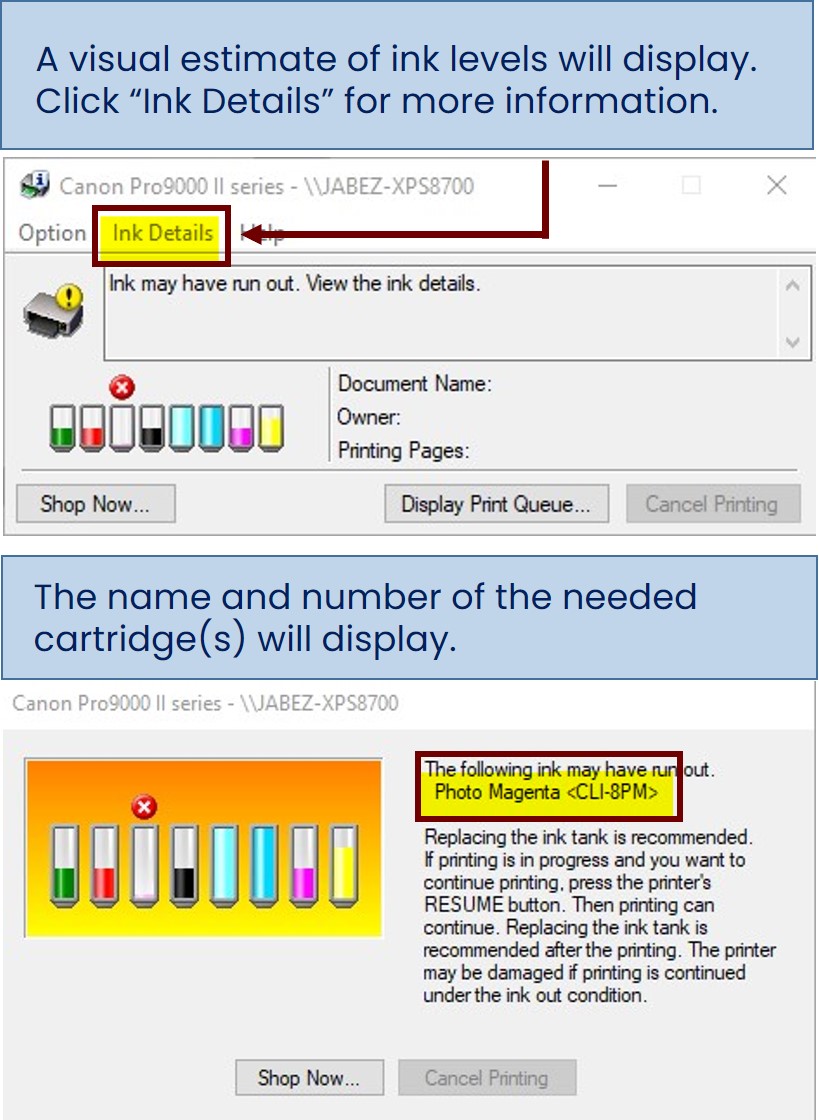
Step 8: A visual estimate of ink levels will display. Click “Ink Details” to display the name and number of the needed cartridge(s).