prevent your time and attention from being manipulated and sold.

“75% of screen content is viewed for less than 1 minute, according to a study that tracked computer multitasking across the course of 1 day. Results indicate that most people switched between different content every 19 seconds. Biological analysis demonstrated that participants experienced a neurological “high” whenever they switched — explaining why we feel driven to keep switching and underscoring how human biology makes us vulnerable to being manipulating by attention-extractive economies.”

ledger.humanetech.com

“Machine learning algorithms have access to hundreds or thousands of data points about you. They know everything about you, all of your interests and exactly what buttons to press on you in order to get you to watch another video to read another article or post.”
(quote source: youtube.com/c/TechLeadShow)

I’m learning how to break free at HumaneTech.com/take-control

How to Comment on LinkedIn as Yourself Instead of Your Company Page

If you manage a company page on LinkedIn, you may notice when commenting on a post, LinkedIn sometimes defaults to display your company name rather than you as an individual.

On the flip side, there may be times when the default is set to identify you as an individual, but you would prefer to comment on a post as your business page.

Here’s a quick infographic to show you exactly how to post as either yourself or your company.

And here’s some text you might want to copy rather than type out as you follow the instructions:

/?actorCompanyId=

How to Stop MS Word from Auto Numbering and Bulleting

For a printable PDF version, CLICK HERE

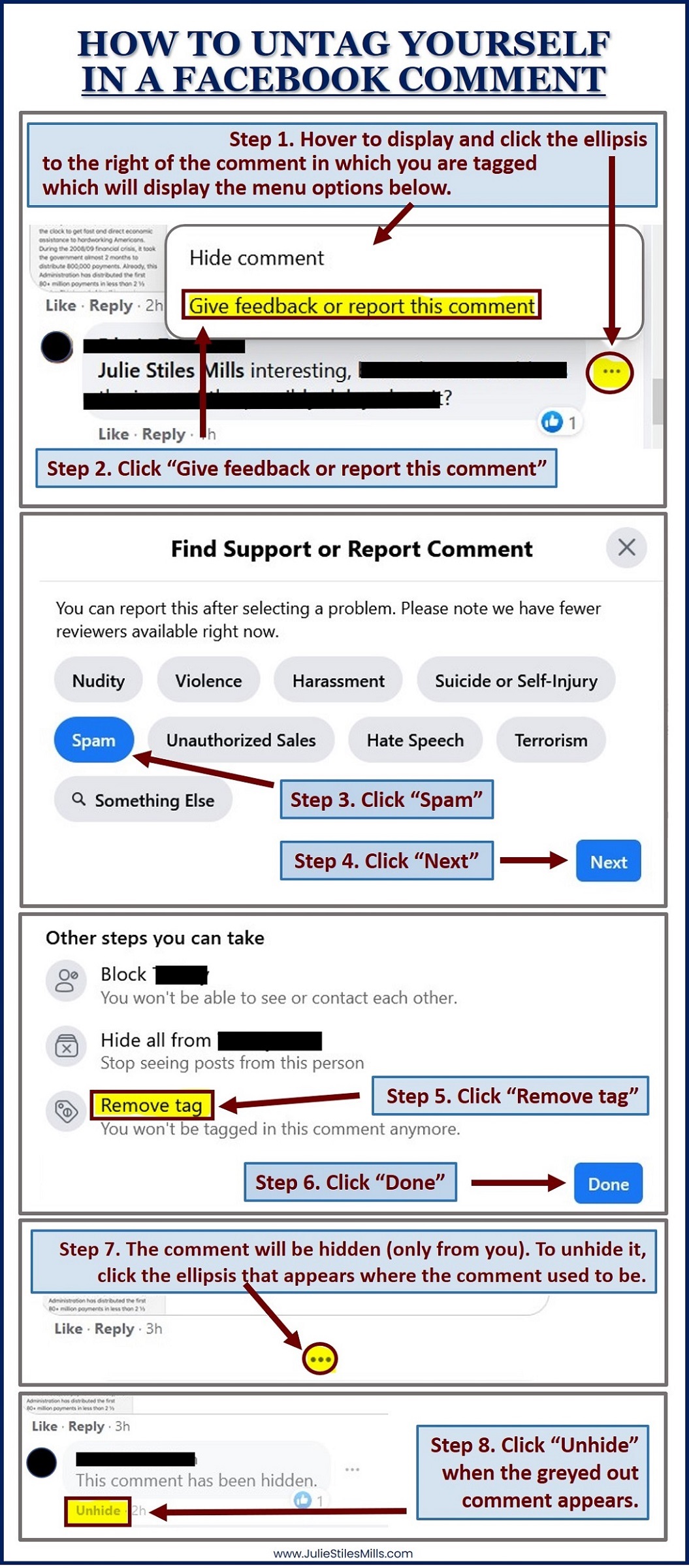
How to Untag Yourself in a Facebook Comment.

If for some reason, the infographic doesn’t display, here’s the text-based instructions to untag yourself from a Facebook comment in a web browser:

Step 1. Hover to the right of the comment in which you are tagged to display an ellipsis and then click it, which will display a pop-up menu.

Step 2. Click “Give feedback or report this comment” from the pop-up menu. (older versions may read: “Find Support or Report Comment”)

Step 3. Click “Spam” from the options in the next pop-up menu that is displayed.

Step 4. Click “Next”

Step 5. Click “Remove tag” in the next pop-up menu that is displayed.
(older versions may read: “Untag Yourself From This Comment”)

Step 6. Click “Done”

Step 7. The comment will be hidden, but only from you. If you would like to unhide it, click the ellipsis that appears where the comment used to be.

Step 8. Click “Unhide” when the greyed out comment appears.

How to Endorse Someone on LinkedIn in 3 Easy Steps

1. Visit a LinkedIn Profile.
2. Scroll Down to Skills & Endorsements.
3. Click or tap the plus sign next to any skill listed to endorse someone for that particular skill.

How to Customize Your LinkedIn URL in 6 Easy Steps

When you create an account on LinkedIn, the default website address of your public profile is: https://www.linkedin.com/in/yourname – followed by a string of random numbers.

Not attractive. Or easy to remember.

Here’s how you can delete those numbers:

1. Log into LinkedIn.
2. Click the Drop Down Arrow to the Right or the Word “Me”
3. Click “View profile” on the Drop Down Menu.
4. Click “Edit public profile & URL.
5. Click the Blue Pencil next to your URL.
6. Customize your URL and Click Save.

free ringtone: “Baby It’s Cold Outside” by Jovie and Buddy

Jovie (and Buddy) singing “Baby It’s Cold Outside” a cappella

Jovie: “So really I’d better scurry…Well, maybe just a half a drink more…the neighbors might think…”
Buddy: (in a sweet and non-threatening voice): “Baby, it’s bad out there…”
Jovie: “Say, what’s in this drink?”
Buddy: (again, in a sweet and non-threatening voice): “No cabs to be had out there…”
Jovie: “I wish I knew how…”
Buddy: (still in a sweet and non-threatening voice): “Your eyes are like stars right now…”
Jovie: “to break the spell….”

Right click HERE to download. Listen:

CLICK HERE for a complete listing of Free Ringtones.

free message notification: I think I’m losing control of the WHOLE world.

Charlie Brown saying “I think I’m losing control of the WHOLE world.”

Right click HERE to download. Listen:

CLICK HERE for a complete listing of Free Ringtones.

Need a New Page? Don’t Hit Enter Till You Get One, Hit CTRL+Enter

Sometimes the smallest computer tip escapes me because I’ve known and used it for so long, but today, I helped someone create a Table of Contents for a document and when I turned on Show/Hide paragraph marks, check out what I saw on the page my client had reserved for the TOC:
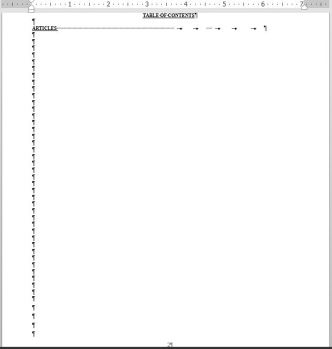
I didn’t count the hard returns, but suffice it to say this is NOT the best way to get a new page. In this particular situation, as soon as the Table of Contents is generated and fills the page, ALL those hard returns will have to be deleted.

In the broader scope of document editing, anytime someone presses the Enter key multiple times to get to the next page, all those extra hard returns will have to be deleted when the document is edited and pagination changes. When this method of getting to a new page is used multiple times throughout a document, editing can easily turn into a circular game of adding and deleting hard returns every time text is added or removed.

Instead of pressing the Enter key over and over and over and OVER again, try pressing the keyboard shortcut “CTRL+Enter” to insert a page break at the location of your cursor.

With the paragraph marks shown, it looks like this:
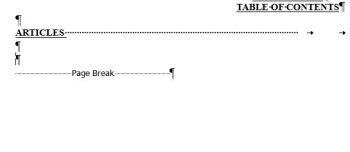
>

I’ll address all the unnecessary spaces and tabs after the word ARTICLES in another post.

WordPerfect: How to Change Outline Format when “Edit Style” is Grayed Out

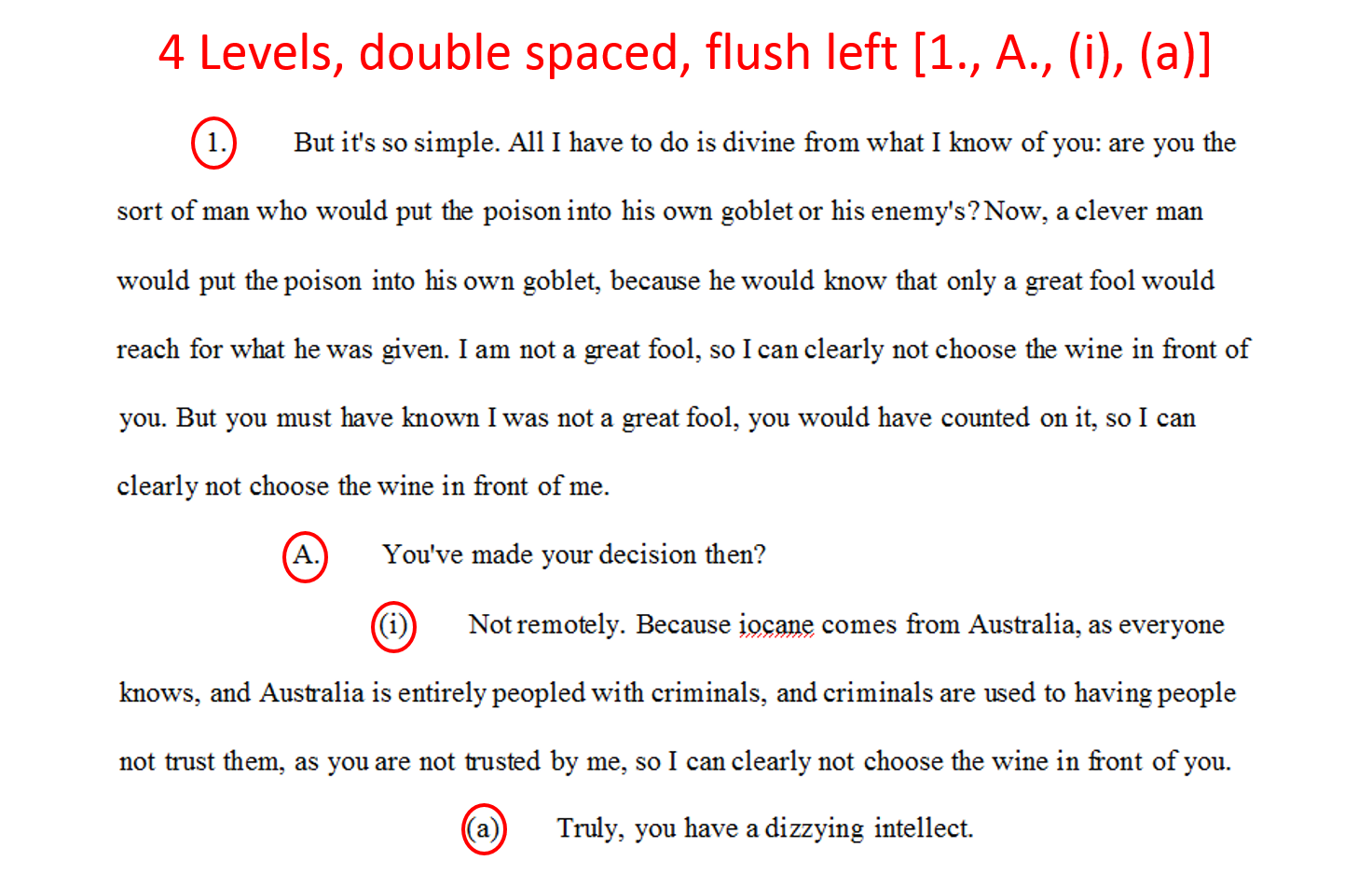
Below is an example of a basic 4 level, double spaced, flush left outline:

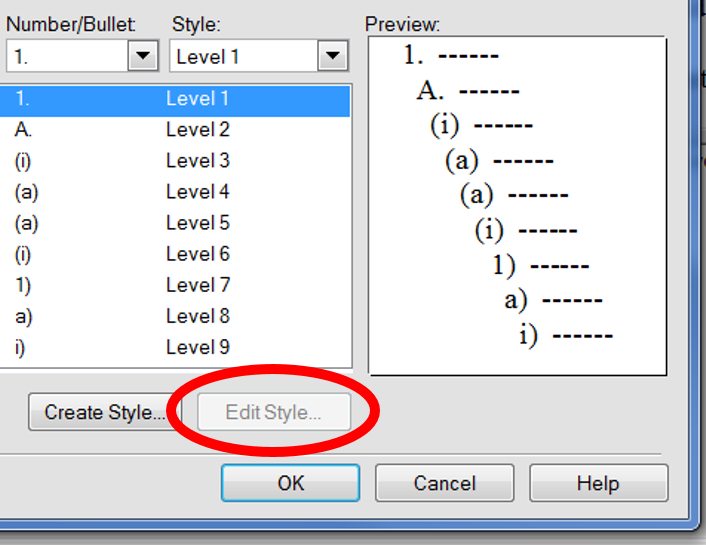
But suppose you wanted to change your outline format from flush left paragraphs to indented paragraphs? If you are comfortable with WordPerfect Bullets and Numbering, you might click “Outline” in reveal codes or “Modify” in the Property Bar to open the “Create Format” dialog box to display settings for the active outline:

So far, so good. But when you look more closely, you’ll see that the “Edit Style” button is grayed out. Unavailable.

that’s inconvenient.

But there’s another way. Actually, TWO other ways. Check it out:
Continue reading “WordPerfect: How to Change Outline Format when “Edit Style” is Grayed Out”