Troubleshooting WordPerfect Publish to PDF.

Is WordPerfect PDF only publishing the current page of the document unless you select/highlight the entire document text?

The Fix:
1. In WordPerfect, click File, Publish to PDF.
2. Select “Settings . . . ” in the bottom right corner of the dialog box.
3. Change the “Export range” to “Full Document” and click “OK” to save the new setting.
4. Cancel the “Publish to PDF” menu and, as an extra precaution, exit WordPerfect to make sure the change holds.
Continue reading “Troubleshooting WordPerfect Publish to PDF.”

autotext/quick parts/building blocks.

If you used Autotext in MS Word 2003 or earlier, it’s one of the first questions you’ll have:

“Does Word still have Autotext?”

The answer? YES.

What’s the next question?

“WHERE is it? I can’t find it anywhere!”

I know.

Autotext has been renamed. reorganized. buried. Some refer to it as QuickParts. or Building Blocks. or both. But forget names. Let’s cut to the chase:

Alt+F3 and F3.

“Keystrokes?” the die hard mouse people whine ask?

(To you mouse people, go ahead, use the mouse. Click the “Insert” Ribbon, then click the Quick Parts dropdown, then . . . who am I kidding? I’m not typing up mouse instructions for this. sorry)

For you long time Autotext users, the good news is that Microsoft left in the legacy keystrokes for this feature.

Quick and Easy.
To CREATE an Entry:
1. Select the text you never want to type again, whether you open a document which contains that text or whether you type it from scratch – select it. Continue reading “autotext/quick parts/building blocks.”

automatic text generation. a variation for the easily distracted.

In the previous #pragmaticcomputingtip, entitled “automatic random text generation. improved?” I shared a nifty little feature in Word 2007 and 2010 which automated the generation of random text.

Check it out and then come on back and I’ll walk you through you a variation.

no. really. check it out. I’ll wait.

okay, welcome back.

While =rand(p,s) is effective and fun, its use has a potential problem. It generates interesting text. Okay, “interesting” is debatable, but it generates English text that makes sense, which means there’s a potential for distraction.

If you don’t want your reader/learner/audience to focus on the content of your text, there’s another, similar feature that generates nonsensical random text that will keep people focused on the form of your document/website without tempting anyone to read for content absorption. Try this:
Continue reading “automatic text generation. a variation for the easily distracted.”

automatic random text generation. improved?

For YEARS DECADES, I have been creating dummy documents for use in computer training. Usually, I ask someone to type a sentence – any sentence – and then I teach them to use keyboard shortcuts to select, copy and paste their sentence, resulting in a multi-paragraph, multi-page document to work with as I train.

It’s always interesting to see what people type:

the distracted or disinterested: “I can’t wait for lunch.”

and the suck-ups: “The computer trainer is really good!” (umm hmm)

and of course, the ever popular: “The quick brown fox jumped over the lazy dog.” frequently makes an appearance.

I’ve written about that third sentence before in a previous post entitled “automatically generate placeholder text in Microsoft Word“. You could automatically generate paragraphs composed of it using Word 2003 and earlier versions using a little known “=rand()” feature in Microsoft Word.

But now, with Word 2007 and 2010, it’s even better.

Check this out. Open either Microsoft Word 2007 or 2010 and, at the top of a new, blank document, type this:

=rand(8,5)

Then press the enter key.

What just happened? Continue reading “automatic random text generation. improved?”

treo text message transfer

Did you get a replacement Treo and discover all your text messages were missing? Give this a shot:

Install the “Messages_Database.PDB”

I found mine in “c:\documents and settings\UserName\My Documents\Palm OS Desktop\LastNameFirstInitial\Backupold”

If the “Messages_Database.PDB” isn’t found in the above folder, search for the file on your computer.

Good luck fellow Treonaut.

#outlook shortcuts: replying to messages

Quick and easy shortcut for you today. Regardless of whether you have an email open or if it’s just highlighted within your Inbox or email folder, you can press:

Ctrl+R to “Reply” to the sender, Ctrl+Shift+R to “Reply to All” or Ctrl+F to “Forward” the email.

pragmaticcomputingtips outlookshortcuts reply forward

creating a facebook PAGE

After a few months on facebook, I realized a facebook PAGE would be a better fit for me than a PROFILE. What’s the difference? In a nutshell, profiles are for people and fun, pages are for businesses and work. Check out the following excerpt from the facebook terms of use:

“Pages are special profiles that may only be used to promote a business or other commercial, political, or charitable organization or endeavor (including non-profit organizations, political campaigns, bands, and celebrities).”

You put anything about your business on your facebook profile wall and you run the risk of having your facebook account suspended. It’s a violation of facebook terms of use. (more terms of use excerpts)

“You will not use your personal profile for your own commercial gain . . .”

and

“If you violate the letter or spirit of this Statement . . . we can stop providing all or part of Facebook to you. We will notify you by email or at the next time you attempt to access your account.”

I’ve read about such “notification.” The person logged in to facebook to discover his account was removed. All friend contact info gone. Everything gone. Bummer.

I also liked the fact that I could keep my page activity separate from my profile activity: (yet another terms of use excerpt)

“Please keep in mind that the fans of any of the Pages you administer will not have visibility or access to your personal account or profile.”

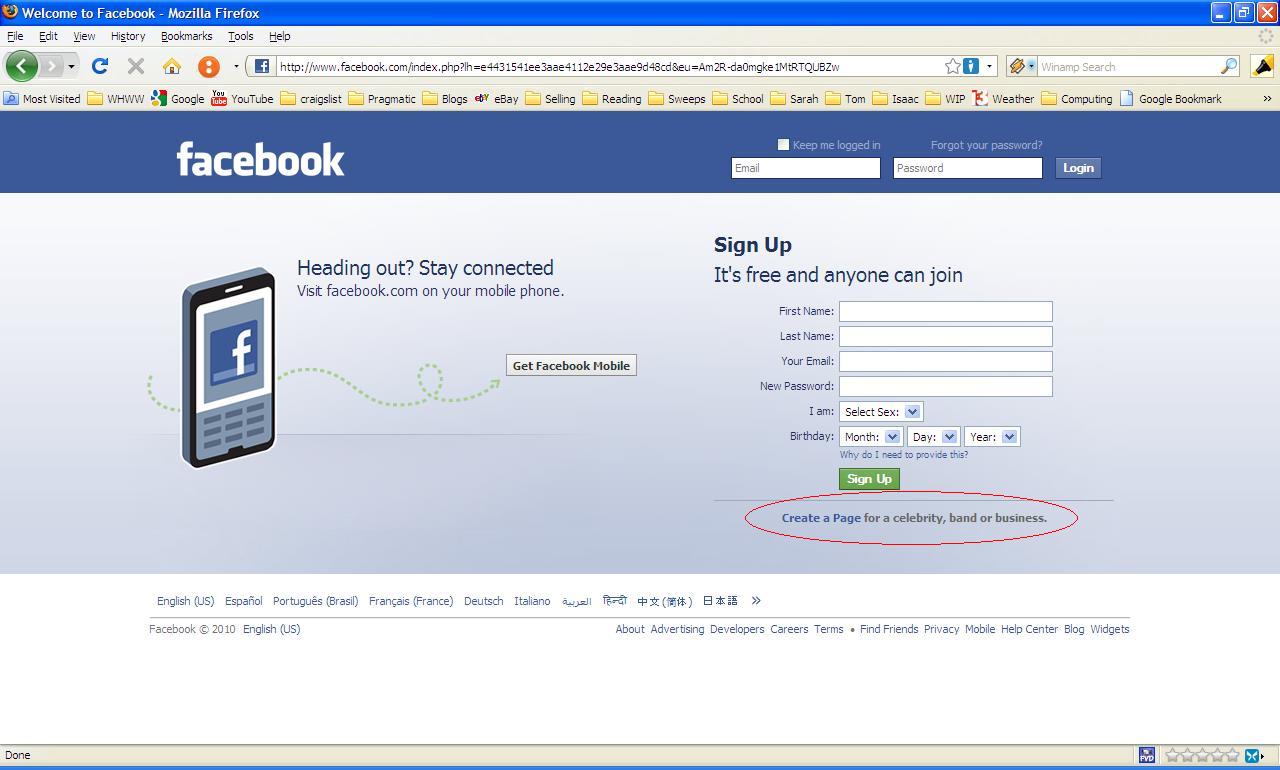
So I set out to create a facebook page. Logged into my facebook account, I couldn’t find anything to click on to create a page. Nuthin. However, logged OUT of facebook, the link is smack on the login page and somehow completely escaped my attention: (click to zoom in)
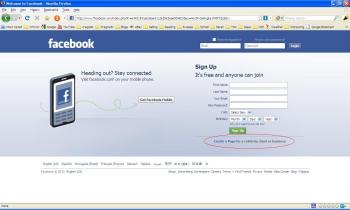
If you want a link to get to the “create a page” page (pictured below) regardless of whether you’re logged in or not, type in:


http://www.facebook.com/pages/create.php target=”blank”

You’ll be faced with three options for the type of page you want to create. Don’t stress about this. The bottom line is that, depending on what you choose here, facebook will prompt you for different info, which you can fill in or not. Note that you currently CANNOT change the type later. To change your page type, you will have to delete it and create another one. Just don’t put a lot of time or effort in until you know what type of page you want to stick with. Until you make a final decision, you may want to put a check in the box marked “Do not make Page publicly visible at this time. (You will be able to edit and publish later.)”

The type of page you choose here will also automatically include certain common facebook apps for that type. However, your use of different facebook apps isn’t limited by the type of page you create. You can add any app you want later. The type of page just automatically adds some based on the most common apps used for a particular type of page.

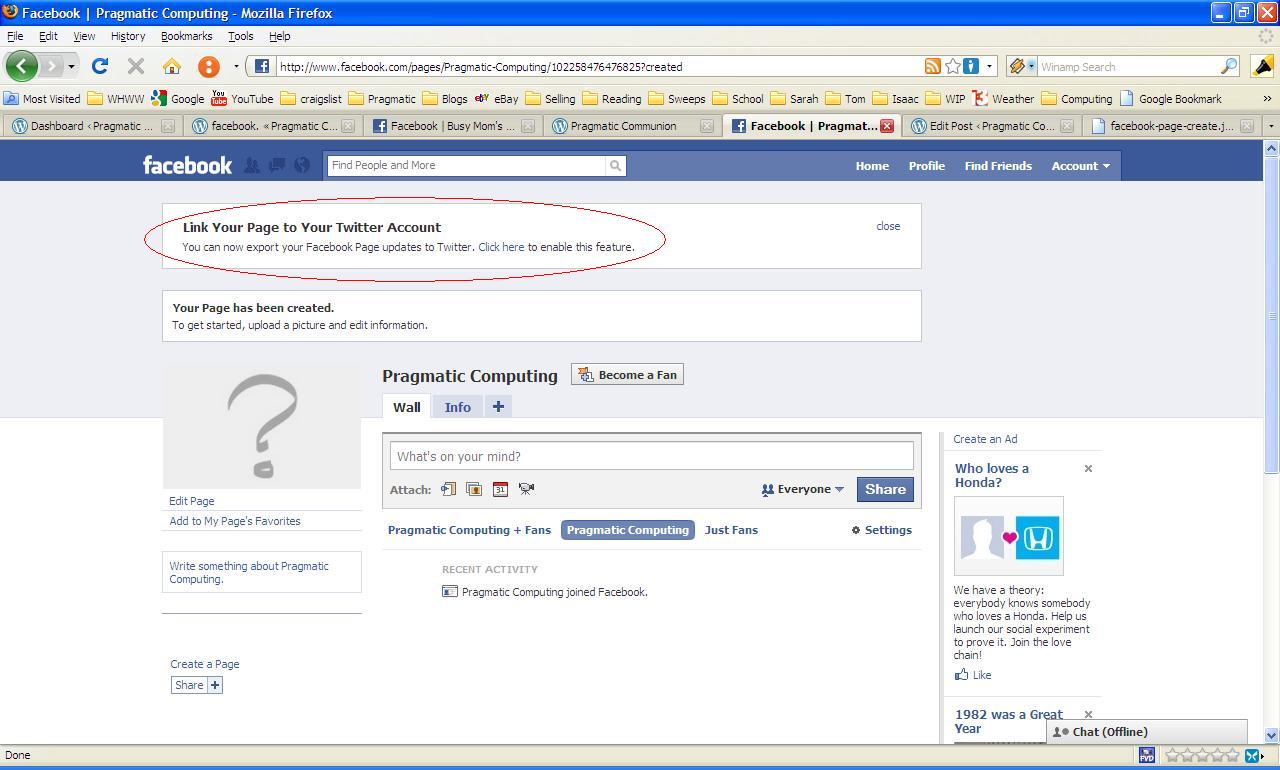
After you’ve created your page, you will be faced with an option to link your page with twitter. (again, click to zoom in)

If you choose to link your facebook page to your twitter account, your facebook page updates will automatically tweet the first 140 characters of the update – including a shortlink back to the update so your followers can read the entire thing – and possibly become a fan of your page.

Last but not least, become a fan of your own page. It makes getting to your page from your facebook profile quick and easy. At your facebook profile page, click the “Info” tab and scroll down to the bottom. There’s your page! Click on it to continue customizing and adding content any time you want. You can also go to your page directly by typing in the URL, but until you get 25 fans of your page, you get a weird URL with a bunch of numbers at the end:

http://www.facebook.com/pages/Pragmatic-Computing/102258476476825?”

Once you get your 25 fans, you can request what’s sometimes referred to as a “vanity URL” and you can ditch the giant number at the end of your URL. (CLICK HERE for a post on how to request a vanity URL)

So what are you waiting for? Go make your facebook page! (And watch for more posts from Pragmatic Computing as I blog my way through my facebook page learning curve.)

who “Likes” ya baby?

Facebook recently switched from allowing you to “Become a Fan” of a page to suggesting you “Like” a page.

One problem I noticed immediately? I could no longer see a complete listing of who “Likes” my page? (you could see a full listing of all the fans before)

Here’s a workaround:

1. Search the page on FB, using the full name of the page,
2. Instead of clicking the link to go to the page, click on “See More Results for…”.
3. From the results page, you should see the page link, along with “XXX People Like This.”
4. Click that (the XXX People Like This), and you’ll see the entire list of fans.

Who knows, maybe they’ll fix it. Eventually.

get a facebook vanity URL

I just created a facebook fan page. Looking good so far . . . except my page’s URL shows a bunch of random numbers after my page name. NOT memorable:

http://www.facebook.com/pages/Julie-Stiles-Mills/379608672550

A little research and I found out that after I get 25 “fans” I can request this:

http://www.facebook.com/pages/Julie-Stiles-Mills

MUCH better!

So – If you have more than 25 fans and would like to ditch the giant unmemorable number at the end of your URL, go HERE:

http://www.facebook.com/username/

You will be presented with TWO options:

VERY, VERY IMPORTANT: BE CAREFUL! IF YOU MIX UP YOUR PROFILE AND YOUR PAGE NAME IN THIS REQUEST, FACEBOOK WILL NOT HELP YOU FIX IT!! YOU COULD END UP WITH YOUR INTENDED PAGE NAME AS YOUR PROFILE NAME INSTEAD.

If you have a facebook PROFILE: The default is to request a vanity URL for a PROFILE, so go ahead and type in your requested name.

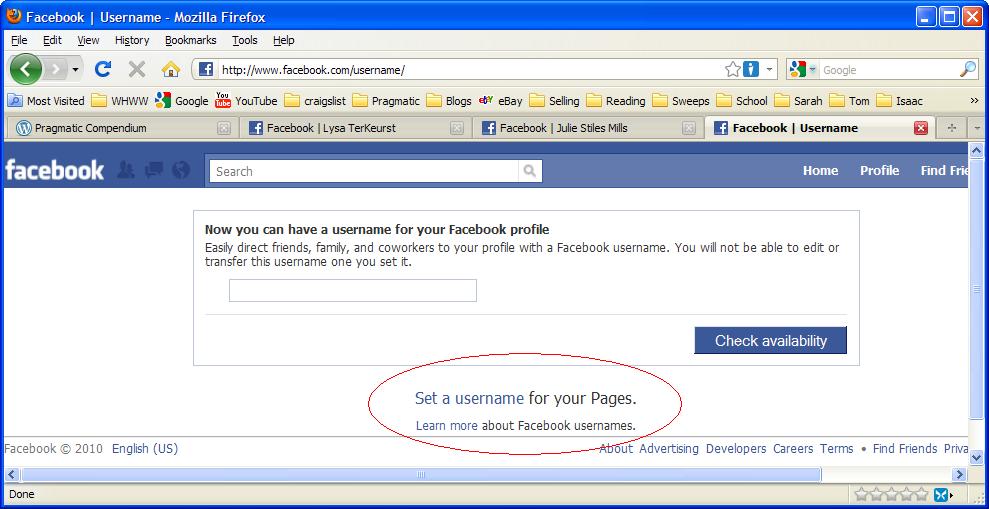
If you have a facebook PAGE: Select “Set a username for your Pages.” towards the bottom of the page. (click the image below to enlarge and see the link circled in red.)

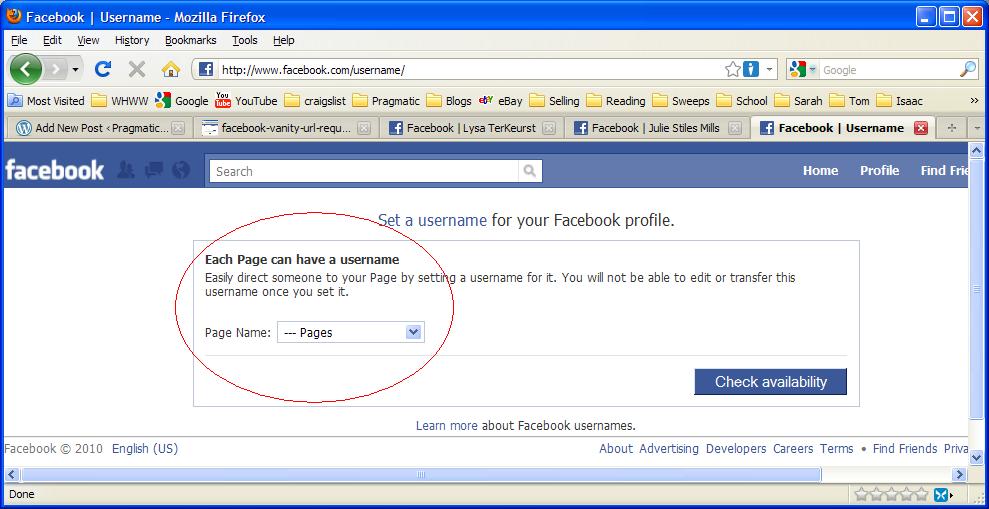
Then you will see THIS option:

Click the drop down arrow, and your page should be displayed. Select it and then click “Check Availability” to confirm. If your page name is unique, you should get it! Good luck!

can’t see your fan page updates in your own newsfeed?

If you don’t see your own fan page status updates in your news feed, make sure they aren’t “hidden.”

1) Scroll to the bottom of your news feed. (in your PROFILE, not on your Fan Page)
2) Click on “Edit Options” toward the bottom right. (click on the image to enlarge it)

3) Make sure your Fan page isn’t listed in the “Hide” box on the right. If it is, just click the “x” on the right side of it to remove it.