Windows Snipping Tool: “How do you snip a menu? It disappears!”

Given the frequency of my need to provide screen shots of steps involved in these pragmatic computing tips, I ran into this obstacle pretty quick.

Every time I needed to snip (take a screen shot of) a drop down menu, the menu I needed to snip would disappear as soon as I opened the Snipping Tool. I didn’t want to go back to the legacy screen shot method (Alt+Print Screen). Those screen shots captured entire windows – much more than I needed – and then I would need to crop the images.

I knew there had to be a way to use this new, cool, more efficient tool, and there was. (I actually needed to use this method to get the screen shots I needed for this post.) Here’s how it works:

1. Display the menu you want to snip/screen shot. In this particular case, I wanted to snip something on the Start Menu, so I clicked the Start button to display the menu.

2. Open the Snipping Tool. The menu you just displayed will disappear. In my case, the Start Menu disappeared. (If this is the first time you’ve used the Snipping Tool, you’ll need to search for it – instructions immediately following below.)

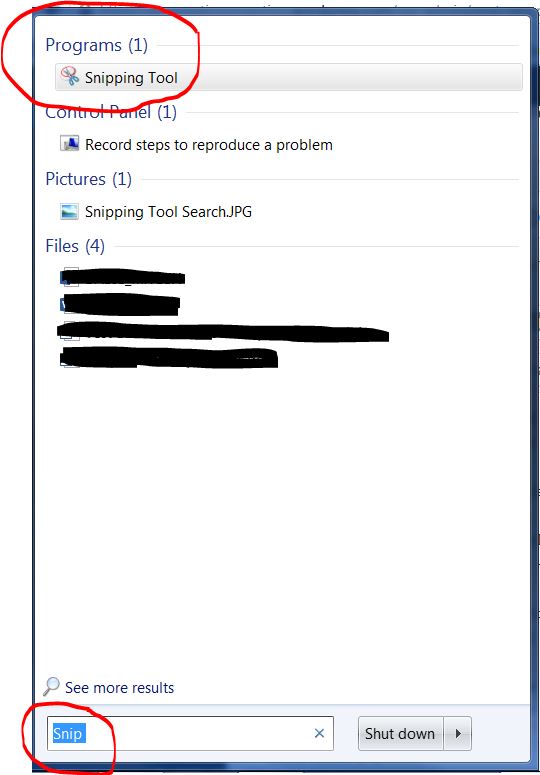
To search for the Snipping Tool, click the round Start button at the bottom left corner of your monitor and begin typing “Snipping Tool” in the search box:

Snipping Tool Search

As soon as you begin typing, Windows 7 will find it and list it at the top of the menu:
Snipping Tool Found

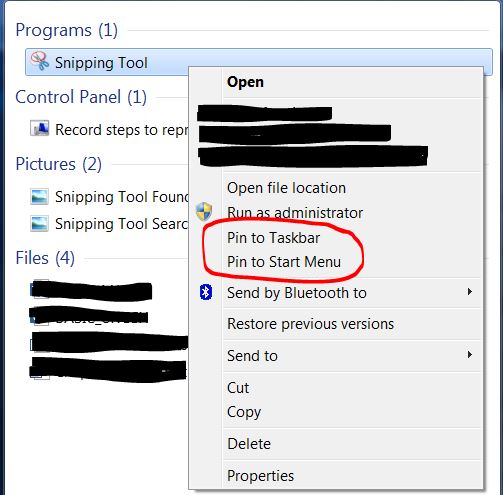
Do yourself a favor. Right click the Snipping Tool and “Pin” the Snipping Tool to Your Taskbar and/or your Start Menu so you never have to search for it again:
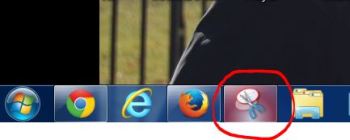
Snipping Tool Pin to Taskbar and Start Menu

Snipping Tool Pinned to Taskbar

Now the Snipping Tool is easily available any time you needed it.

Back to Step 2.

2. Open the Snipping Tool. Again, a small window will open, the menu you’ve displayed and want to clip will disappear and the screen will fade in color a little bit. That’s normal.

3. Press Esc on the Keyboard. The small Snipping Tool window will stay open and the vibrancy of the screen colors will come back.

4. Re-open the menu that you need to snip.

5. Press Ctrl+PrtScn. (Staayyyy with me…Don’t quit just because you can’t find the PrtScn button. There’s one on every keyboard, just not always in the same location.)
The screen will fade in color again to let you know the Snipping Tool is active.

6. Click and drag the area around the area of the screen you need to snip.

7. When you let go of the mouse button after the click and drag, your screen shot will be displayed in the Snipping Tool window and you can save, copy or email it.

(To learn more about the Snipping Tool, click HERE)
printer tshooting with WordPerfect

Every once in a while, I dig into WordPerfect to disable a little known setting:

“Reformat documents for the WordPerfect default printer on open”

This eliminates a few different problems, two of which come immediately to mind:

1. Older WordPerfect documents won’t open correctly in a newer version of WordPerfect.
2. Existing documents won’t print to the correct paper trays, but new documents will.

Sometimes an error message will indicate a missing (and OLD) print driver, sending someone on a quest to find it. When it’s found and loaded on a new machine, WordPerfect can open the document.

That’s a good workaround, but sometimes an old printer driver can’t be found or and/or old universal drivers won’t do the trick. I wouldn’t be surprised to see more of this type of issue since HP isn’t making Windows 7 64 bit drivers for their old printers.

Try this instead: Click Tools, Settings, Environment, 2nd check box – UN-check “Reformat documents for the WordPerfect default printer on open”

Default NumLock State

I’m a NumLock OFF girl, myself. See, when I started using computers, keyboards didn’t have dedicated arrows, you had to navigate using the arrows on the number pad. Now, a couple of years later 🙂 the habit is well ingrained. My husband and I spent years changing the NumLock back and forth on our home computers.

I was very happy when I found out the Windows XP default NumLock state was OFF!

I win!

Then, a client asked me how to set the default state to ON. Since I never wanted to do that, I asked my favorite IT guy how to do it. He started talking about the bios and the registry and then my eyes glazed over and I started to hear the ocean – or a Prius, I’m not really sure.

There had to be a simpler way. And there is. The NumLock state can be set differently for each user profile in Windows XP. Here’s how to set the default NumLock state to ON:

1. While logged in, set the NumLock to ON.
2. Click the START button and select “Log Off” (the second option from the bottom).
3. Select “Log Off” again (NOT switch user)
4. You should see a message which reads “Saving your settings” as the computer logs off.
5. After log off is complete, you should see a message which reads: “To begin, click your user name”
6. When you do, you should see a message which reads: “Loading your personal settings”

The NumLock should automatically turn on all by itself!

It should stay set to ON until or unless someone LOGS OFF with a different NumLock state active. Shutting down without logging off shouldn’t change the NumLock setting.

WordPerfect SWITCH and CASEOF

In generating a WordPerfect merge document, one of my clients wanted to type an acronym for a plaintiff ONE time and have the merge process insert many different things in the document, based on that one, shortened client reference.

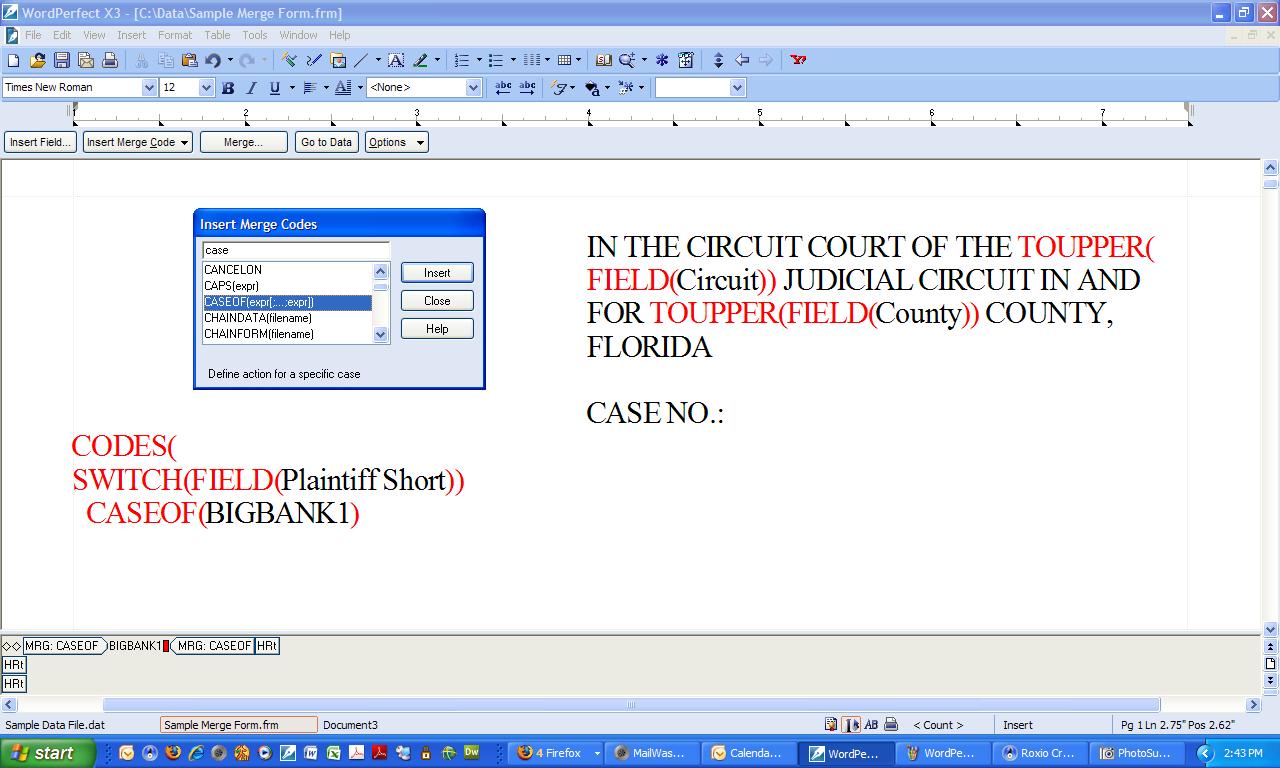
Let’s look at how to do that. The code looks like this:

(click to zoom any image)

Step 1. In the process of setting up the WP merge, a data field was created for the plaintiff, named “Plaintiff Short.”

This particular merge form was only used for three clients, so the example is limited to three. Keep in mind, you can have more or less.

Here’s the code as it appeared in the WP merge form document:

CODES(
SWITCH(FIELD(Plaintiff Short))
CASEOF(BIGBANK1)
INSERT(The Big Bank of Central Southeast, a Florida corporation)
CASEOF(BIGBANK2)
INSERT(Small Town Bank, a Florida corporation)
CASEOF(CREDITUNION)
INSERT(The Friendly Local Credit Union, a State Chartered Credit Union)
DEFAULT
KEYBOARD(Please the Name of the Bank and Click “Continue”)
ENDSWITCH
)

Note: You can’t just type this code. Here’s how to insert the code into your form document.

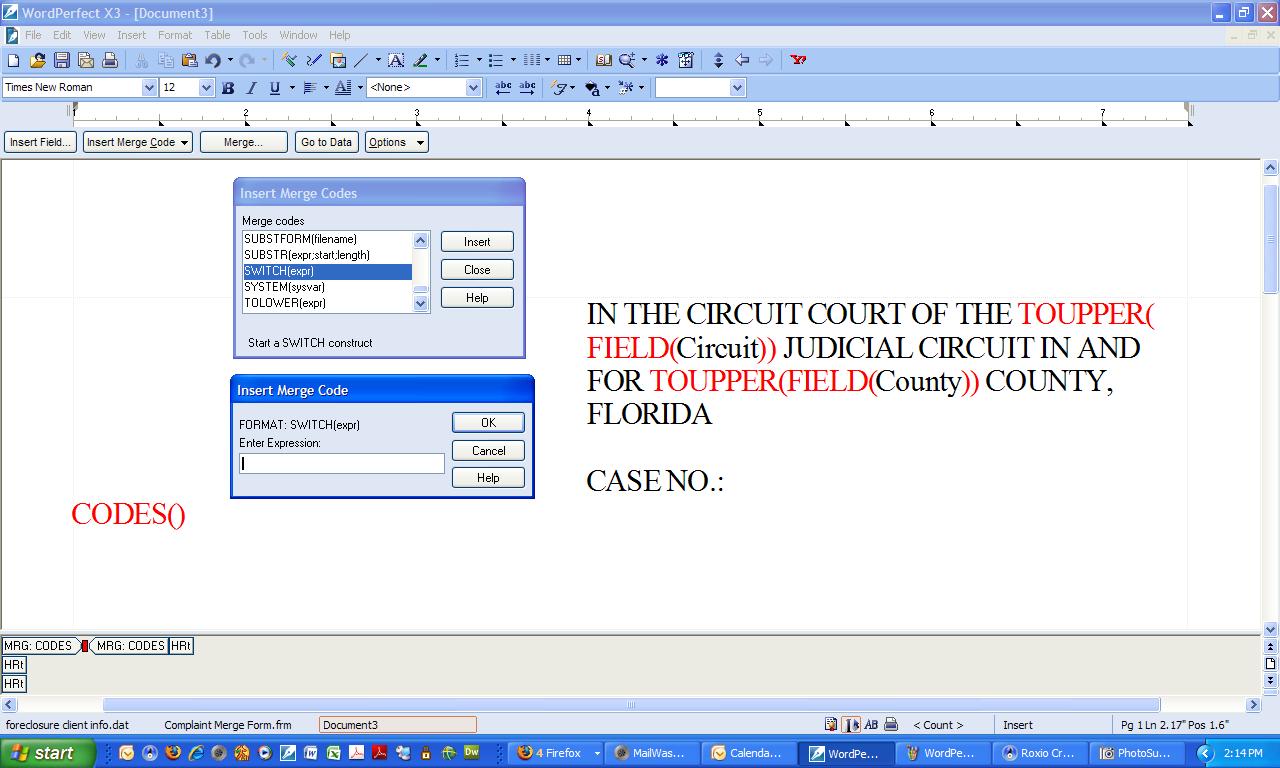
Step 2. Open the merge form. In the Merge subtoolbar, click the “Insert Merge Code” button and select “More . . . ” The following dialog box appears:

The first code I insert is “CODES(merge codes)” which ignores hard returns and spaces between its parenthesis. With my cursor between the parenthesis of the CODES() merge code, I press enter to insert a hard return and place my cursor on the following line, so it looks like this (the cursor is shown in red):

CODES(
|)

Step 3. Leaving the “Insert Merge Codes” dialog box open and find the “SWITCH(exp)” merge code in the list click Insert. Another dialog box, entitled “Insert Merge Code” is displayed. I don’t enter anything and click “OK”

The code should now look like this (:

CODES(SWITCH(|))

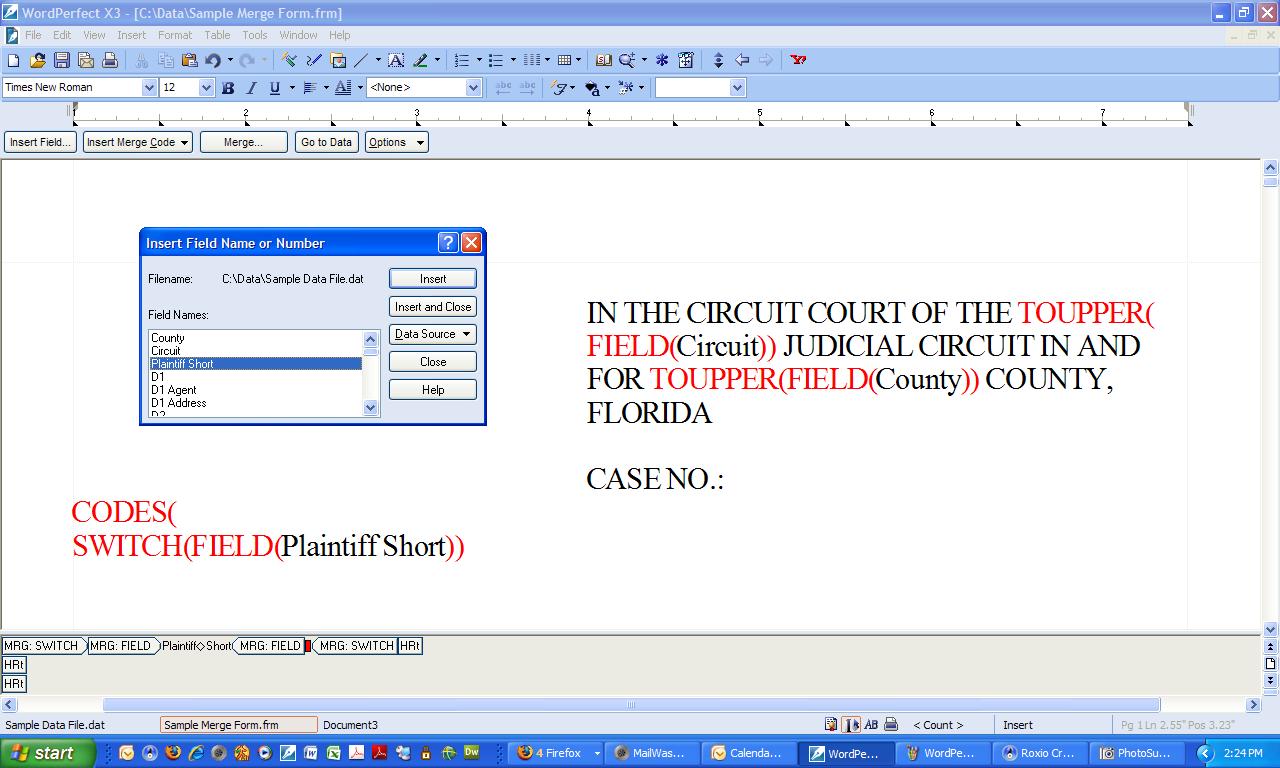
Leave the Merge Code dialog box displayed if it doesn’t bother you, close it if it does. (I closed it so as not to confuse anyone.) Next click the “Insert Field” button on the Merge subtoolbar and select the field you need. In this case, I selected the “Plaintiff Short” field and clicked insert.

Step 4. Close the “Insert Field” dialog box. If you closed the “Insert Merge Code” dialog box, open it again by Placing the cursor on the next (empty) line, click the “Insert Merge Code” button and select “More . . . ”

Step 5. Insert the “CASEOF” code. With the cursor between the parenthesis of the CASEOF code, type the text which might be entered into the “Plaintiff Short” data field during a merge:

In this case, the text “BIGBANK1” is entered.

Step 6. Repeat step 5 as many times as needed, changing the text to be entered in each possible scenario. (In my example code above, I added an option for text entry to allow for the possibility of a new client.)

Step 7. Finish by inserting the “ENDSWITCH” merge code. The end parenthesis for the CODE command still appears and it completes the code snippet!

Step 8. One simple way to use the result of that snippet is to insert the “Plaintiff Short” field into the document everywhere the Plaintiff’s acronym should appear, but there are lots of other possibilities!


Want to learn more? Visit www.pragmaticcom.com and schedule a training session!

viewing invisible grid lines

Can’t see the grid lines for labels or margins in WordPerfect? It could be a problem with Windows and flatscreen monitors. (Corel’s support database – Answer ID 207679) Try this:

For Windows XP:
1. Right click on the Desktop, select Properties.
2. Select the Appearance tab.
3. Click the Advanced button.
4. Select 3D Objects in the Item dropdown.
5. Under Color 1, choose a darker shade of gray.
6. Click OK, then click Apply on the Appearance tab.
7. Click OK, and open WordPerfect.

For Windows Vista:
1. Right click on the Desktop, select Personalize
2. Click on Window Color Appearance
3. Click on Open Classic Appearance
4. Click the Advance button
5. Select 3D Objects in the Item dropdown
6. Under Color 1, choose a darker shade of gray.
7. Click OK, then click Apply on the Appearance tab.
8. Click OK, launch WordPerfect.

The grid lines should be more visible. (The darker the shade of gray you select the more visible the grid lines will be.)

html links

Ever want to post a link to a web page but don’t want it to look like a bunch of code?
Maybe you don’t understand the code in the first place. (I won’t tell.)

Let’s say you want to post the following link:

http://www.youtube.com/watch?v=vFLs9RI8mSA

Not attractive. And, depending on where you paste it, sometimes it won’t even function as a link.

What if you could create a link that looks like this:

Small is Tall

And, more importantly, when someone clicked, it actually worked as a link?

Let’s keep it extremely simple. Type or copy the text below:

<a href=”page.html”>Label Text</a>

Then replace page.html with the URL of the destination web page.

Also replace Label Text with whatever text you want the reader to see instead of the actual link.

In this example, the link would look like this:

<a href=”http://www.youtube.com/watch?v=vFLs9RI8mSA&#8221; > Small is Tall</a>

That’s it!

(Keep in mind, some websites, forums and blogs restrict the use of html code. For instance, wordpress.com allows this html link code in comments, but blogger only allows simple html code, like bold and italics.)

treo ringtones

I’m a palm girl. And these days, that means TREO. I’ve owned three Treo 650s, then a Centro (hated it) and now I’m back to a Treo – a 680.

treo680

One of the first things I do when I set up a new Treo is get my ringtones loaded. I’m lazy. When my phone rings, I don’t want to look at it to see who’s calling. The people who call me the most get their own ring tone. But on a Treo, this was not so easy. Or cheap.

Now, it’s routine:
Continue reading “treo ringtones”

@randbetween(1,100)

Rolling dice, flipping coins, drawing cards or straws, drawing slips of paper out of a hat. All methods to generate random results. Here’s one more:

@randbetween(x,y)

To Create a Random Number: In a blank cell of any spreadsheet program, type @randbetween(x,y) where x equals the smallest number you want to use and y equals the largest. In other words, typing the function @randbetween(1,100) will generate a number between 1 and 100.

Recalculate the Number: Press the “F9” key to generate a new number.

Change a Random Number to a Value: Note that any time you make a change to any cell in your spreadsheet, the program recalculates all the formulas on the sheet. That means the random number will recalculate every time a change is made to the spreadsheet. If you want to make your random value permanent, move to the cell with your @RANDBETWEEN function and press F2 (EDIT), then F9 (CALC).

Compatibility: This formula will work in Excel, Quattro Pro and Lotus 123. Have a different spreadsheet program? Give it a shot.

Microsoft Purists: Some of you may be thinking that Excel formulas begin with an equal sign, so the formula should be: “=randbetween(1,100)” True enough. Go ahead. But I’ve been using spreadsheet software for a long time (Lotus 123). We old timers know that spreadsheet formulas are “supposed” to begin with “@” and we also know that formulas beginning with an equal sign won’t work in Quattro Pro and Lotus. Because Microsoft is special.

i can see clearly now

When you read text on your computer monitor, do the fonts seem . . . grainy? Do the edges of the letters appear ragged? Especially italicized text?

Try this:
Click the “Start” button (on the task bar at the bottom left of your screen).
Hover over “Settings” and click “Control Panel”
Double Click “Display”
Click the “Appearance” Tab (the fourth tabbed page)
Click “Effects . . . ” (at the bottom right of the menu)

Under the second check mark, labeled: “Use the following method to smooth edges of screen fonts:” Click the drop down arrow and select “ClearType” instead of “Standard”

Click “OK” (NOT cancel or the red “X” in the top right corner)
Click “Apply” (at the bottom right of the menu)

beautiful!

VISTA USERS: Clear Type is enabled by default on Windows Vista.

To Find the Option:
Right Click Anywhere on Your Desktop (away from any icons)
Click “Personalize” on the menu when it appears.
Click “Windows Color and Appearance”
Click “open classic appearance properties for more color”
Click the “Effects” button

Under “use the following method to smooth edges of screen fonts” Click the Arrow to the Right of the Box and Select Either “standard” or “cleartype”

Click OK, then OK again and then Close the personalization window

need a comment do-over?

Ever leave a comment on a blog and REALLY want to remove it later? Maybe you have an embarrassing typo, maybe you shared just a little too much and have “commenter’s remorse” or maybe you accidentally posted a comment on the wrong blog post. I’m sure there are other reasons.

The good news? You may have some options!

If:
You have a blogger account* AND
You are logged in AND
You leave a comment on another blogger blog

Then:
Go to the blog where you left the (unwanted) comment.
Find the page where your comment appears.
Next to the comment, you should see a trash can icon. Click it.
On the confirmation page, click “Delete Comment” and you’re done!

See an example here.

*Did you catch what I wrote? A blogger ACCOUNT. I didn’t say a blogger BLOG. At least, not an active, public one. You don’t have to switch your blog platform. You don’t even have to create a “real” blog. You can create a blogger account, create a “bare bones” blog, make it private and ba da bing. You have a blogger account. Then, when you comment, use OpenID to link to your active blog, whatever its platform – BUT make sure you are logged into blogger when you comment.

Because, if you aren’t logged in to blogger when you comment, you won’t see a trash can next to your post later. Here’s the thing. If you have a blogger account, but use OpenID to sign your comment, you won’t be able to delete your comment UNLESS you were logged into blogger when you posted the comment.

ohhhhh. (in the link above, blogger explains a few other reasons you may not see a trash can next to your comment)

I did that this morning. And then I had to email the blog owner to beg her to delete my comment for me! (no. I’m not telling who it was. you’ll go read my comment before she deletes it. I’ll give her public credit for inspiring this post AFTER she gets a chance to remove it.) UPDATE: Thanks, Amy for deleting my stupid comment.

You can also manually add a “delete” button on your blogger blog by inserting some code into your template. I found these instructions which provides the code allowing the comment author to delete it. I get the impression this would be for commenters who don’t have a blogger account. I haven’t tried it yet, but I probably will (Pragmatic Communion and Pragmatic Computing are hosted by blogger).

Unfortunately, if you have a WordPress blog, you don’t have that option. Here’s a WordPress FAQ (frequently asked question) and their answer:

Can I edit comments I wrote on another blog?

It is unfortunately not possible to edit or delete any comments you have left on another WordPress.com blog.

The best thing to do would be to attempt to contact the blog owner.

bummer.

Anyone know how is this handled by Typepad? What about other blogging software platforms?