It’s usually a temporary blip (highly technical term 🤓) with the resolution and graphics card and it happens to me sometimes after I open one too many browsers, tabs and applications. but who’s counting. 😀
If you have time, reboot.
If you are in the middle of something, you can press the Windows key + Ctrl + Shift + B for a quick refresh. Your monitors will flash, turn black, and then come back on.
You could also unplug the power for about 10 to 15 seconds and then plug it back in.
If none of these three quick fixes works for you, the resolution of your monitor may be set incorrectly, you may have an outdated driver or you may need a better quality monitor.
I’ll cut to the chase: the window isn’t wide enough. Either maximize or stretch the window’s width and the subject will display. You’re welcome, feel free to buy me a cup of coffee. 😎 →
This had been driving me nuts for a few months, but it was sporadic, only happening once in a while and only to (seemingly) random appointments. This morning, I got tired enough of it to figure it out.
I’ve been working with Outlook for over a decade and this had never happened before. How and why now? Was it some sort of bug in Outlook? or was it something different or new that I’ve been doing?
It was something new I’ve been doing.
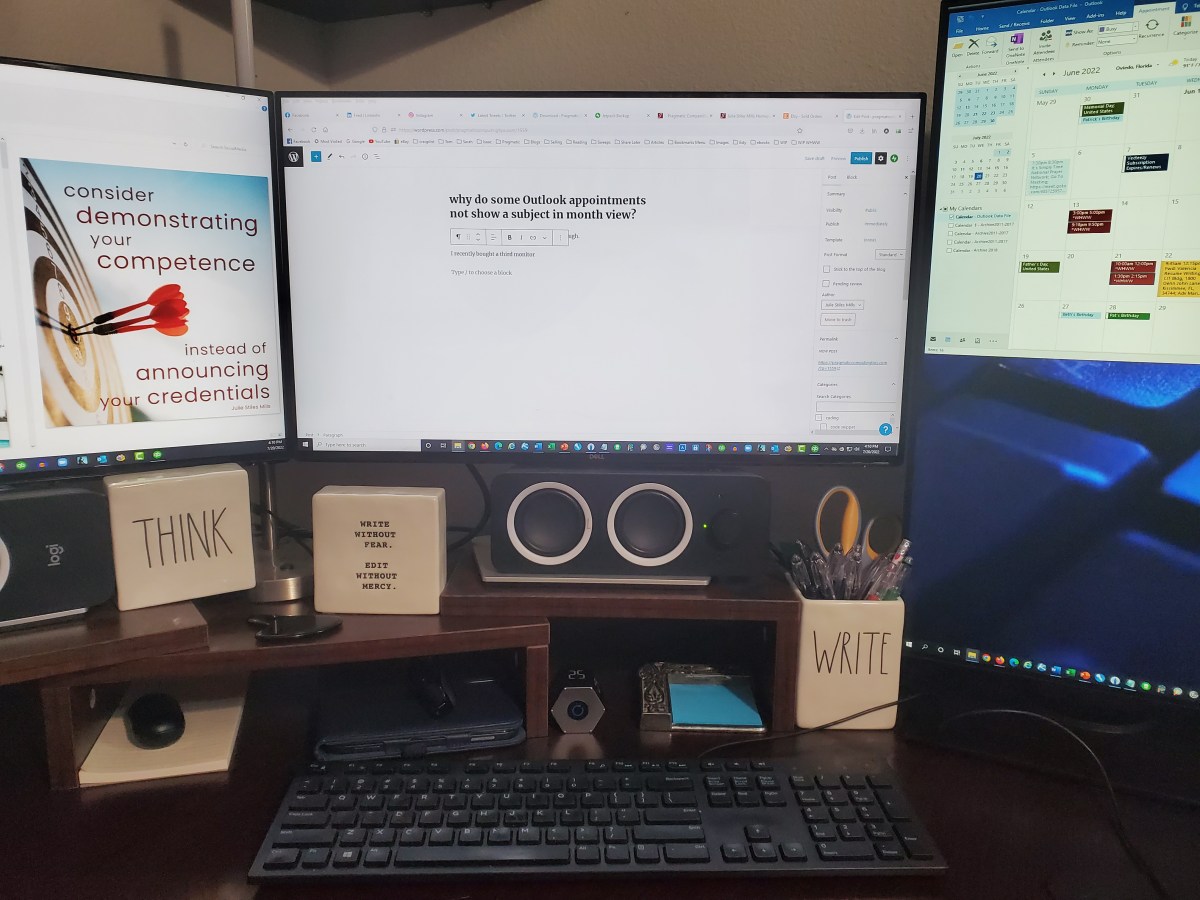
I recently bought a third monitor to make online meetings easier when instructing groups.
One monitor displayed my presentation, another displayed the Brady Bunch grid of faces and the third monitor, in portrait mode, allowed me to watch and manage the waiting room, the chat and the breakout rooms. It’s worked out very well, not only for online meetings, but for my tendency to have…more than a few windows open at one time.
As a matter of everyday practice, when I’m not in an online meeting, my middle monitor is my main monitor. Straight in front of me, good ergonomics…all that. My left monitor is for reference or source material and my right, portrait monitor became home to my Outlook calendar and email.
I typically don’t have outlook maximized because, as you might have guessed, I use the bottom half of the portrait monitor for another window, often youtube or amazon music.
My default view for calendar is month view and I’ve been noticing that some of my appointments didn’t have a subject line. It happened again today. Weird. I opened the the appointment to see if it actually HAD a subject line. It did. Weird. I googled. Lots of search results about scheduling resources and…what you probably found before you stumbled upon this post.
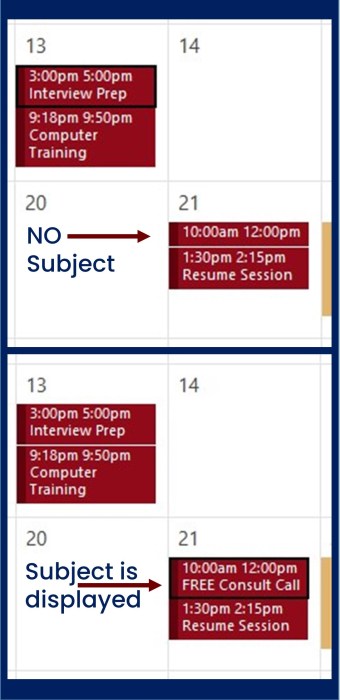
I figured it out when I dragged my Outlook calendar to my middle (landscape) monitor and poof. Subject line appeared. Here’s a screenshot of it happening last month.
I dragged Outlook back to the portrait monitor and double clicked the title bar to maximize the window. The subject line appeared. Since I didn’t want to leave the Outlook window maximized and taking up the entire height of my monitor, I restored the window and then stretched it a bit. The subject line appeared.
If you notice, the times for the problem appointment have two digits in both the beginning and ending times, making it longer than the other appointments. That was enough to do it.
If you use MS Word, you know that red lines under text indicate spelling errors and green lines point out grammar errors.
Soon, you’ll start seeing purple lines.
They are highlighting “potentially offensive words and phrases” to help you write more inclusively by suggesting alternatives that are less likely to offend.
I’m curious how the word “they” will fare. It seems like one way or the other, you’ll either see green or purple.
If you would prefer to turn this new “feature” off, the settings are found under the “Inclusiveness” section of the “Grammar & Refinements” options.
Do so at your own risk. 😐
I wonder if MS Word would have “purpled” anything in this post…
Have you ever been in a Zoom meeting while someone is sharing their screen and grey boxes began showing up at random, covering parts of what’s being shared?
I have. And it’s annoying. I actually see it from both sides when I share my screen because I often run multiple computers during Zoom meetings: I run the meeting on my two monitor desktop, I share PowerPoint slideshows from my laptop and I sometimes join on my tablet as well, so I see the grey boxes on my desktop and tablet AND I see the actual messages behind the boxes on my laptop.
I haven’t wanted to derail an entire session and make people wait while I searched for the setting, and truth be told, I use GoToMeeting more often, so I kept forgetting about Zoom’s grey box problem after the sessions were over. Today, I finally took the time to troubleshoot. I had to try a number of search strings before I finally tracked down the issue because I didn’t know exactly what setting I was looking for. Search strings referencing “Zoom notifications” didn’t lead me to the answer. These messages weren’t really notifications. Of the multiple messages I kept seeing on my laptop, the one I saw the most actually read:
“You are sharing your screen.”
Thank you Zoom, for letting me know that. 🙄
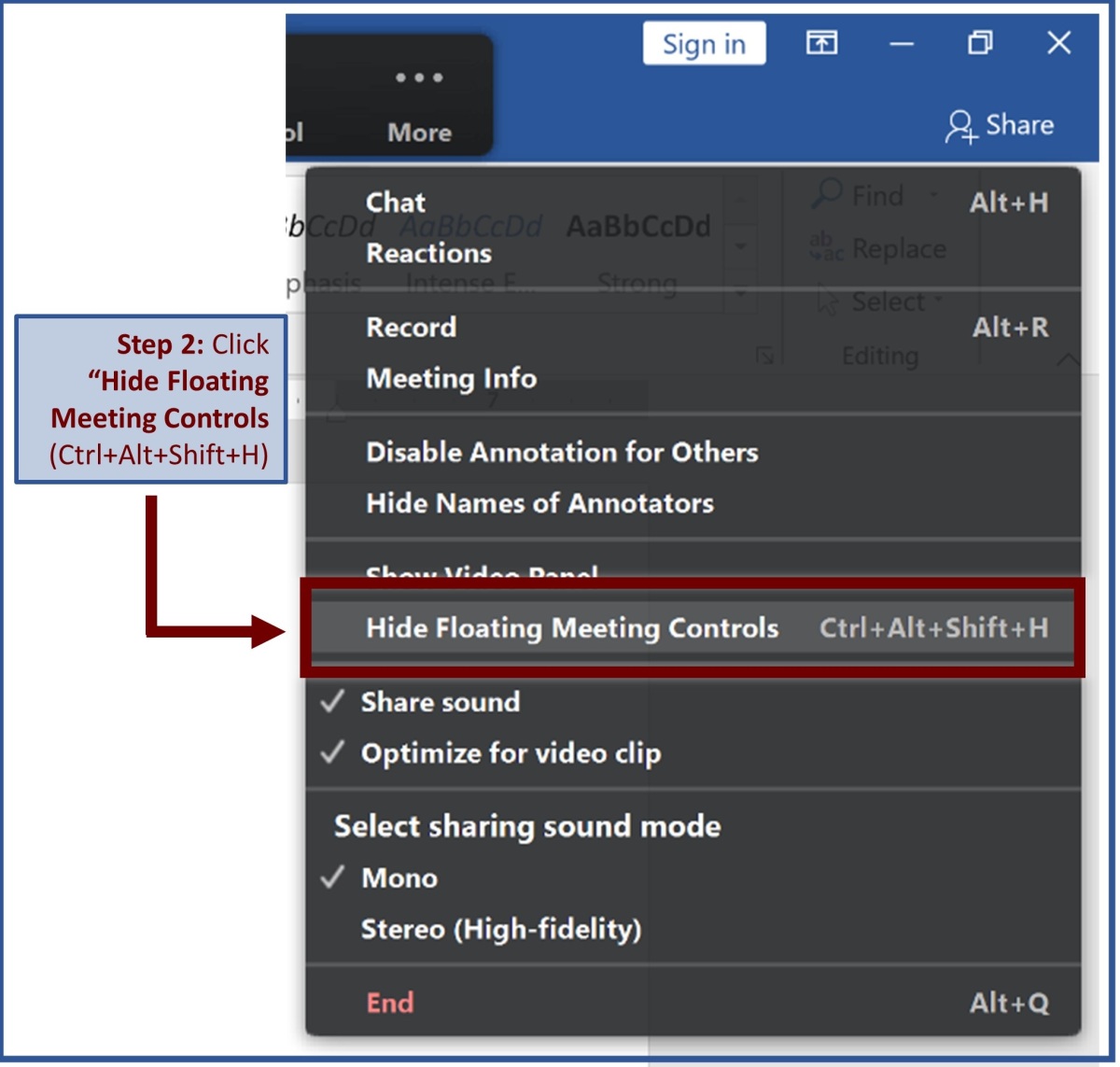
I’ll cut to the chase. The messages are “meeting controls” and here’s how to turn them OFF during your Zoom sessions and make the grey boxes stop Zoom bombing your meetings:
(click to zoom in…no pun intended)
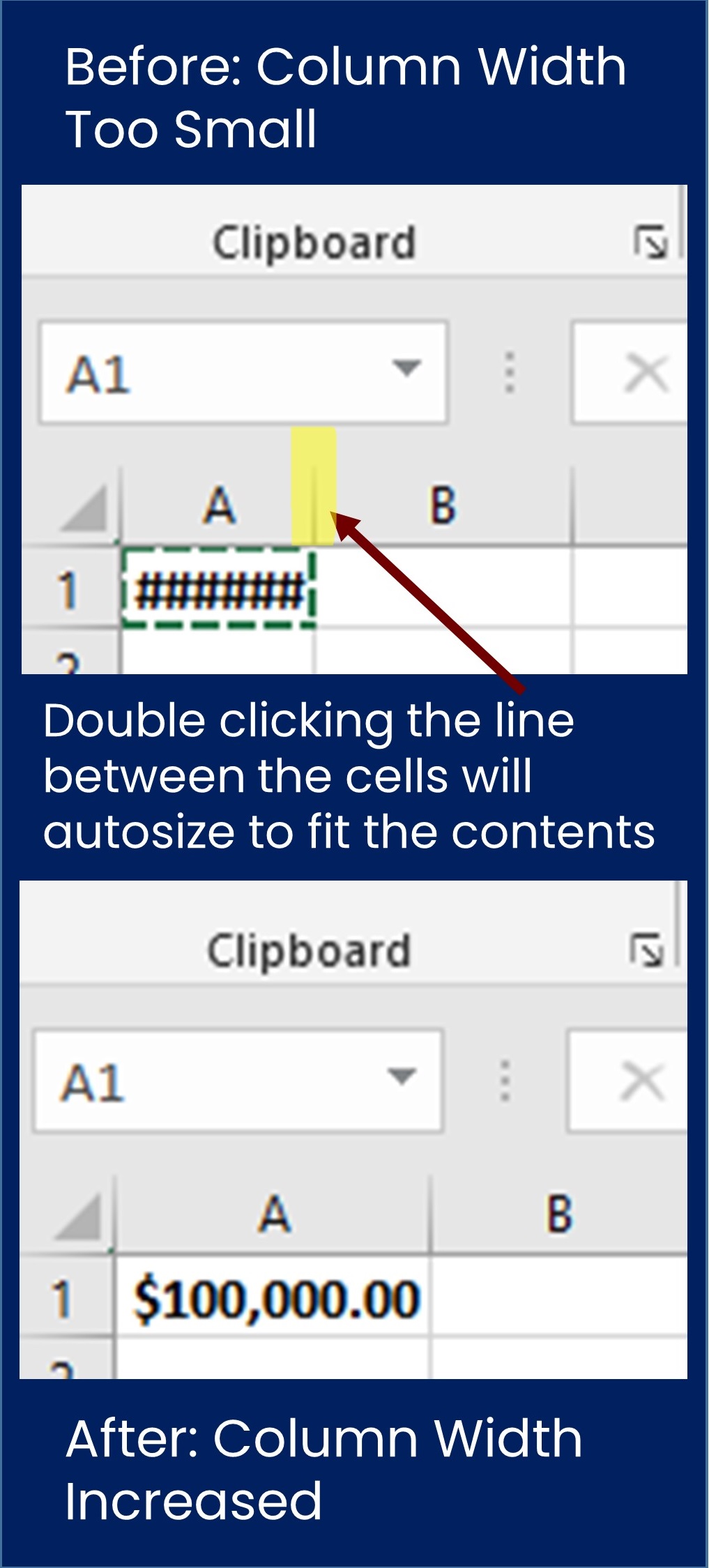
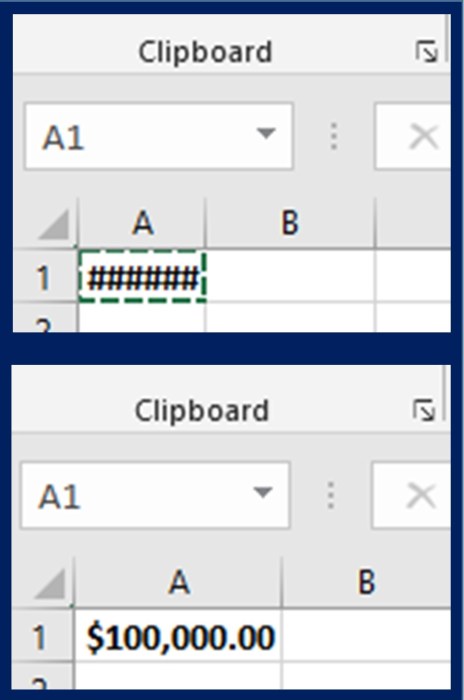
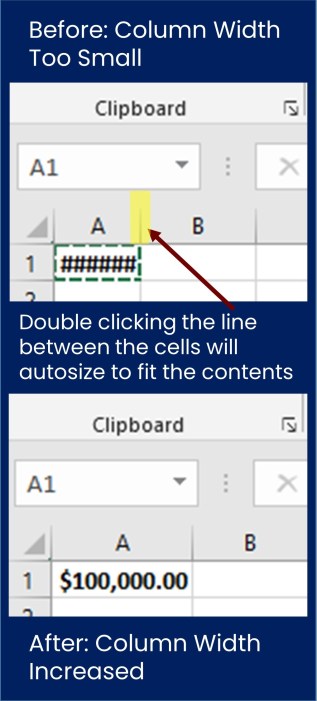
The most common reason for this is that the cell isn’t wide enough to display the full contents.
The quick, easy way to increase the width of the cell is to double click on the column line after the cell within the header row. It will increase not only that cell, but the entire column.
If you manage a company page on LinkedIn, you may notice when commenting on a post, LinkedIn sometimes defaults to display your company name rather than you as an individual.
On the flip side, there may be times when the default is set to identify you as an individual, but you would prefer to comment on a post as your business page.
Here’s a quick infographic to show you exactly how to post as either yourself or your company.
And here’s some text you might want to copy rather than type out as you follow the instructions:
I thought I was crazy. My keyboard was typing stuff I did NOT type. Backslashes when I pressed the spacebar. Numbers when I pressed letters and the other way around. Adding characters when I pressed the backspace button. Weirdness. Nothing short of a reboot would solve the problem and even then, it was only temporary. I searched Google and stumbled upon the possibility that my keyboard was no longer set to “QWERTY.”







 pragmaticcomputingtips.com