 Emperor’s New Groove:
“It’s brilliant, brilliant, brilliant I tell you! Genius, I say!” Right click HERE to download.
Listen:
CLICK HERE for a complete listing of Free Ringtones.

After decades of allowing users to draw and edit tiny little toolbar icons using the built in icon editor of WordPerfect, the latest release – WordPerfect X7 – has replaced the “edit” button with an “import” button.
it’s a sad click-and-drag coloring day.
BUT. If you still have an older version of Wordperfect, don’t uninstall it! You can create and edit icons for import in WPx7.
Just create your masterpiece as usual, and then
1. Click the Copy button at the bottom of the WordPerfect icon editor
2. Open the Paint program that comes pre-installed on every Windows machine
3. Paste (CTRL+V for you keyboarders out there)
4. Click “Crop” in the toolbar (the pasted image should already be selected after pasting) and
5. Save the icon with the .png extension.
Then when you see that “import” button as you customize your WordPerfect x7 toolbar, you can import your custom creation. The image should be a 16 x 16 pixel .png image and icons created with previous versions of WordPerfect are exactly the right size.
Two icons that I used regularly over the years were for Letterhead forms and Internal Memo forms. Here are a few in different colors. Just right click to save the image.


Some people love the clean look of Word 2013, but if you’re like me, it feels cold. and bleh.
and empty.
The ribbon only displayed when I clicked on a menu item. As soon as I began typing, it would disappear. This was not helpful. I didn’t want to go get the ribbon every time I needed something on it. That ribbon needed to sit and stay.
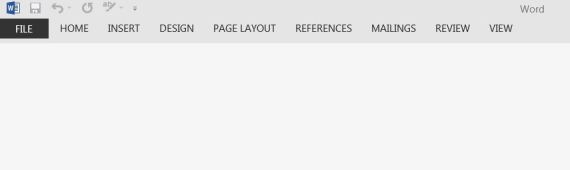
Here’s how to get your ribbon back: Continue reading ““Where’s the Ribbon in Word 2013?””
 I don’t have a sweet tooth. It’s a blessing, I know.
(on the other hand, if you see me holding a box of Cheddar Jack Cheez-its, do NOT reach for any. I will hurt you.)
Even so, I feel compelled to share this information for my donut loving friends:
Krispy Kreme technology is now available.
Continue reading “krispy kreme technology. it’s hot and ready.”
I thought I was crazy. My keyboard was typing stuff I did NOT type. Backslashes when I pressed the spacebar. Numbers when I pressed letters and the other way around. Adding characters when I pressed the backspace button. Weirdness. Nothing short of a reboot would solve the problem and even then, it was only temporary. I searched Google and stumbled upon the possibility that my keyboard was no longer set to “QWERTY.”
To find out if your keyboard settings may have changed:
Continue reading “cure your possessed keyboard: dvorak to QWERTY”
Need a code snippet for your style sheet?
Below are four options for setting the top, bottom, left and right margins:
margin:10px 40px 25px 90px;
top margin is 10px
right margin is 40px
bottom margin is 25px
left margin is 90px
The first and most obvious reason the “Print” button would be grayed out is if you are trying to print a blank document. It happens. We get busy, we speed up, a Ctrl+F6 or a Ctrl+N sneaks in just before a Ctrl+P and the next thing we know, we have a gray Print button.
So…Question #1: Is there anything in your document? Text? a Text Box? an Image? Bueller?
I realize that’s the equivalent of asking you if your computer is plugged in and I apologize if you’re giving your monitor the stink eye right now, but we needed to eliminate that possibility right up front.
Moving along.
If your document isn’t empty, then follow these steps:
Continue reading ““Print” Button Grayed out in WordPerfect Print Dialog Box?”



 pragmaticcomputingtips.com