html lists: indent spacing and change bullet styles

Working on my website recently and created a multi-level unordered list. The spacing of the second level indent was much more than I needed and I wasn’t loving the fact that the bullets were the same for both levels.

I found code to solve both those problems, so as usual, I’m posting it here for my future reference and, hopefully, to help someone else looking to solve the same problems.

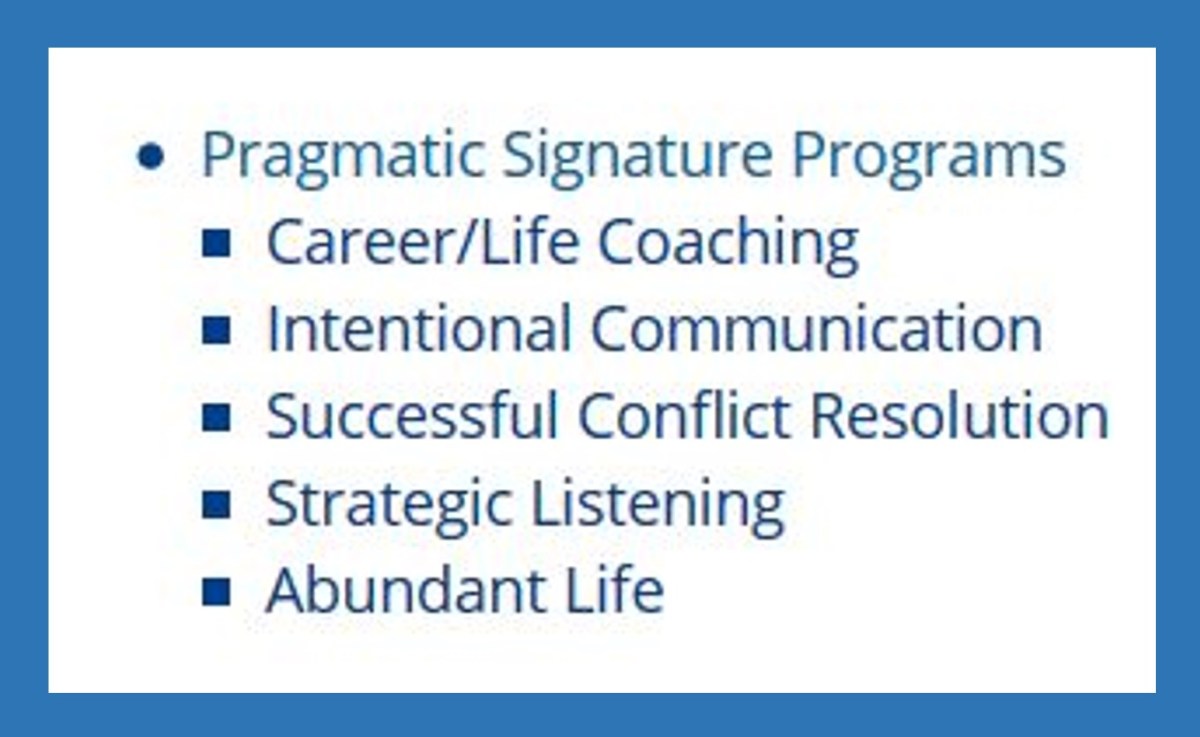
I changed the second level bullet style to square and reduced the second level indent to 15px. Here’s a screen shot of my final list, followed by the code snippets I used:

Continue reading “html lists: indent spacing and change bullet styles”

html: add a mouse hover “tooltip” to a link.

Here’s a little code snippet you can add to a link so that when someone hovers their mouse over the link, a “tooltip” is displayed, giving them more information. In the example shown below, the image of Dorothy looking out her window is a link to download an audio clip of the theme of the Wicked Witch. The tooltip I added displays the target post’s title “free ringtone: wicked witch of the west” when the mouse hovers over the image.
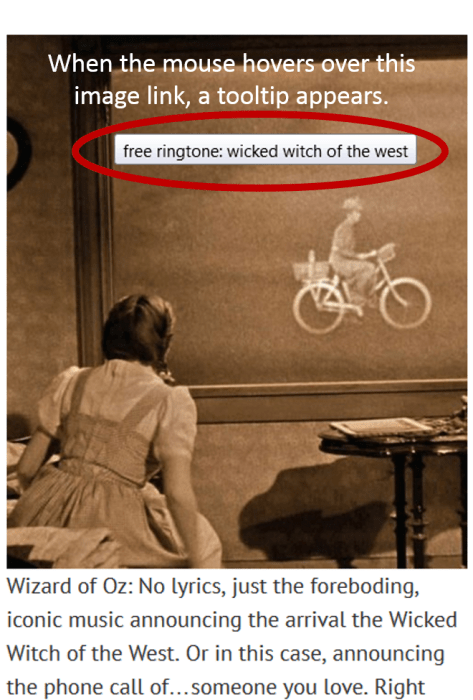
A simple way to add a tooltip to an image link is to add the following code immediately following the link target:

<span title=”your tooltip language goes here”></span>

For an example of how this was used in the image above, check out the sample code below.
The tooltip code appears highlighted on line 4:

<a href="https://pragmaticcomputing.wordpress.com/
2016/08/24/html-add-a-mouse-hover-tooltip-to-a-link/
wordpress-post-displaytooltiponhover/">
<span title="free ringtone: wicked witch of the west">
<img class="alignnone size-large wp-image-685"
style="border: 1px solid #000000;"
src="https://pragmaticcomputingtips.com/wp-content/uploads/
2016/10/wordpress-post-displaytooltiponhover.png?
w=474" width="474" height="700" /></span></a>

As you might expect, the tooltip code isn’t limited for use with an image link. It can also be used with a text link, again, just by adding it immediately following the link target and before the </a>
(hover over the following text to view the tooltip)

Wicked Witch of the West Theme Song

Here’s what the code from the above text link looks like:

<a href="https://pragmaticcomputing.wordpress.com/
2016/08/24/html-add-a-mouse-hover-tooltip-to-a-link/
wordpress-post-displaytooltiponhover/">
<span title="free ringtone: wicked witch of the west">Wicked Witch of the West Theme Song
</a>

To add a tooltip to plain text, it’s even simpler:

<span title=”your tooltip language goes here”>Text to be hovered over.</span>

create faux letterhead for fax and pdf attachments.

Historically, I’ve created faux letterhead to be used when letters were to be sent via fax. More recently, they are used for letters to be sent as PDF attachments via email.

The reasoning behind this is to save money on pre-printed stationary letterhead. Economically, there’s no reason to print a letter on this expensive paper when the recipient will never actually touch it.

First, I re-create the content and format of a client’s pre-printed letterhead using the same fonts and layout as the printed version. The goal is that the recipients of these letters won’t notice a difference between the paper letters they receive from a firm via USPS and the letters they receive from the same firm via fax or email.
Continue reading “create faux letterhead for fax and pdf attachments.”

prevent editing in a Section of a MS Word template/document

Occasionally, I’ve needed to protect a portion of a Word template from accidental editing. There are many reasons to do this, but one example – the one I’ll be using in this particular #pragmaticcomputertip – is to protect the content and formatting of what I call “faux” letterhead. (Note: This tip applies to MS Word 2007 and later.)

Click HERE to read the previous #pragmaticcopmutertip about creating faux letterhead. After finalizing, it’s a good idea to to be protect that section of the form against accidental editing. Here’s how that’s done:

Continue reading “prevent editing in a Section of a MS Word template/document”

free downloadable Letterhead and Memo icons

After decades of allowing users to draw and edit tiny little toolbar icons using the built in icon editor of WordPerfect, the latest release – WordPerfect X7 – has replaced the “edit” button with an “import” button.

it’s a sad click-and-drag coloring day.

BUT. If you still have an older version of Wordperfect, don’t uninstall it! You can create and edit icons for import in WPx7.

Just create your masterpiece as usual, and then
1. Click the Copy button at the bottom of the WordPerfect icon editor
2. Open the Paint program that comes pre-installed on every Windows machine
3. Paste (CTRL+V for you keyboarders out there)
4. Click “Crop” in the toolbar (the pasted image should already be selected after pasting) and
5. Save the icon with the .png extension.

Then when you see that “import” button as you customize your WordPerfect x7 toolbar, you can import your custom creation. The image should be a 16 x 16 pixel .png image and icons created with previous versions of WordPerfect are exactly the right size.

Two icons that I used regularly over the years were for Letterhead forms and Internal Memo forms. Here are a few in different colors. Just right click to save the image.

iconlhblack

iconlhblue

iconlhgreen

iconlhorange

iconlhpink

iconlhpurple

iconlhred

Save

iconimemoblack

iconimemoblue

iconimemogreen

iconimemoorange

iconimemopink

iconimemopurple

iconimemored

send someone a text via email.

Did you know you can send text messages from any email program to a cell phone? For example, to email a text message to someone who uses AT&T, you would address the email like this: 10digitcellnumber@txt.att.net

However, when sending text messages via email, follow a few best practices:

1. Keep the message to just text (no images or attachments).
2. Keep the text plain (no text formatting).
3. Keep these messages short. If you send a large message, it will be broken up into multiple smaller 140 or 160 character messages. #annoying
Continue reading “send someone a text via email.”

“Where’s the Ribbon in Word 2013?”

Some people love the clean look of Word 2013, but if you’re like me, it feels cold. and bleh.

and empty.

The ribbon only displayed when I clicked on a menu item. As soon as I began typing, it would disappear. This was not helpful. I didn’t want to go get the ribbon every time I needed something on it. That ribbon needed to sit and stay.

Word 2013 Ribbon Hidden

Here’s how to get your ribbon back: Continue reading ““Where’s the Ribbon in Word 2013?””

cure your possessed keyboard: dvorak to QWERTY

I thought I was crazy. My keyboard was typing stuff I did NOT type. Backslashes when I pressed the spacebar. Numbers when I pressed letters and the other way around. Adding characters when I pressed the backspace button. Weirdness. Nothing short of a reboot would solve the problem and even then, it was only temporary. I searched Google and stumbled upon the possibility that my keyboard was no longer set to “QWERTY.”

To find out if your keyboard settings may have changed:
Continue reading “cure your possessed keyboard: dvorak to QWERTY”

css margins.

Need a code snippet for your style sheet?

Below are four options for setting the top, bottom, left and right margins:

margin:10px 40px 25px 90px;

top margin is 10px
right margin is 40px
bottom margin is 25px
left margin is 90px

Continue reading “css margins.”

“Print” Button Grayed out in WordPerfect Print Dialog Box?

The first and most obvious reason the “Print” button would be grayed out is if you are trying to print a blank document. It happens. We get busy, we speed up, a Ctrl+F6 or a Ctrl+N sneaks in just before a Ctrl+P and the next thing we know, we have a gray Print button.

So…Question #1: Is there anything in your document? Text? a Text Box? an Image? Bueller?

I realize that’s the equivalent of asking you if your computer is plugged in and I apologize if you’re giving your monitor the stink eye right now, but we needed to eliminate that possibility right up front.

Moving along.

If your document isn’t empty, then follow these steps:
Continue reading ““Print” Button Grayed out in WordPerfect Print Dialog Box?”